
Set up Microsoft Authenticator on a new phone
In this article
In this article group
Use these steps when you are replacing a phone that you use to approve Microsoft 365 work-account sign-ins. If the old phone is lost or no longer works, start with If you cannot approve sign-in below.
Before changing phones
Keep the old phone and its Authenticator app available until you have tested the new phone. Restoring an Authenticator backup does not restore work-account credentials; you still need to register the account on the new phone.
On your new phone, install Microsoft Authenticator from the official app store. You will also need a computer or another device to display the setup code.
Add the new phone
- On your computer, open Microsoft Security info. Sign in with your work email address. If asked, choose Work or school account.
- Complete verification with your old phone or another method already registered to your account.
- Select Add sign-in method, choose Microsoft Authenticator, and select Add. Follow the setup prompts until a QR code appears on your computer.
- On the new phone, open Authenticator. Select + or Add account, then Work or school account > Scan a QR code. Allow camera access when asked, then scan the code on your computer.
- Continue on the computer and complete the test notification on the new phone. If a number is displayed, enter that number in Authenticator when prompted.
You may see a Keep your account secure setup screen like the example below. Your organization may require different methods or show slightly different screens.
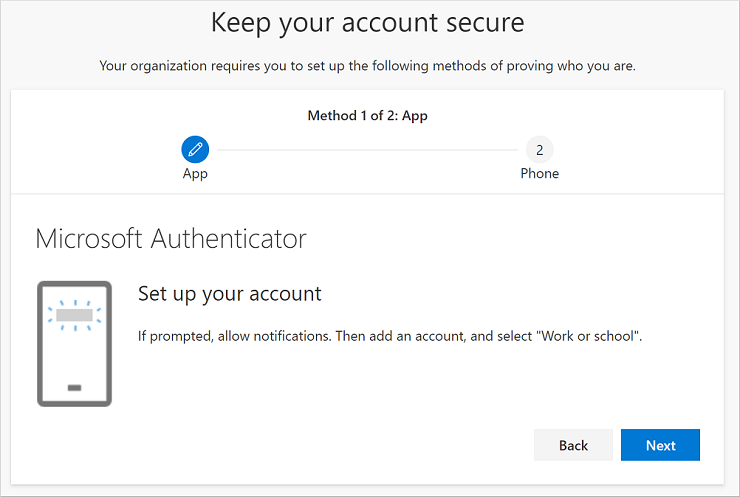
Microsoft example: choose Work or school when adding the account. Your setup may use different verification methods. Source: Microsoft Support.
Check that it works
Sign in to Microsoft 365 in a separate browser window and confirm that you can complete verification with the new phone. Keep your existing session open while you test. Once the new method works, review Security info and remove the Authenticator registration for the phone you no longer use. If you are unsure which registration is which, ask 2Fifteen Tech before removing one.
If you cannot approve sign-in
At the verification prompt, choose Sign in another way or I can't use my Microsoft Authenticator app right now, if offered. Use a method you already have access to.
If every option depends on the old phone, or Microsoft will not let you add a new method, contact 2Fifteen Tech support. Include your work email, whether you still have the old phone, and the exact error. We will verify your identity and help you re-register using your organization's process.
Never send an Authenticator setup QR code, verification code, or approval number to support. Only approve a notification when you started that sign-in yourself.
Official instructions
- Microsoft: Add a work or school account to Authenticator
- Microsoft: Set up security info during sign-in
- Microsoft: Restore Authenticator accounts on a new phone
Last reviewed: October 30, 2026.