
Get started with 1Password on your work computer
In this article
In this article group
1Password stores logins and other secure items so you can find and use them across your approved devices. This guide covers everyday use on a work computer.
1. Join your company's account
Open your company's 1Password invitation and follow the setup prompts using the work email that was invited. If your organization uses single sign-on (SSO), use the company sign-in option provided during setup.
If setup asks you to create a 1Password account password, choose a strong one that you can remember. Keep your account password, Secret Key, and Emergency Kit private. If an Emergency Kit is offered, save it in a secure place you can access if you are locked out.
If you have not received an invitation, or are unsure which account to join, contact 2Fifteen Tech support. A personal 1Password account is separate from the account your company provides.
2. Set up the app and browser extension
- On a managed Mac, check Iru Self Service for the approved 1Password app. If it is not listed, ask support to check availability. On other devices, use your company's approved installation process.
- Open the app and sign in to your work 1Password account using the setup details or company SSO method.
- Install the approved 1Password browser extension in the browser profile you use for work. Follow any company-managed setup prompts.
- Open the extension and unlock or sign in when prompted. If you cannot see its toolbar button, follow 1Password's instructions for showing the button.
The desktop app and browser extension work together, but installing the app alone does not mean the extension is enabled in every browser profile.
3. Choose the right account and vault
A vault is a collection of saved items. If you have several 1Password accounts, make sure your company account is selected before saving work logins.
- Employee vault: If provided, use this for your individual work logins that are not intended for colleagues.
- Shared or team vault: Items are available to the people who have access to that vault. Use the vault your organization has designated for that team or shared service.
Check the destination vault before saving an item. If you cannot see a vault you need, ask support to check your access.
4. Save and fill a login
- Visit the website's correct sign-in page in your work browser.
- Sign in with your existing credentials. When 1Password offers to save the login, check the account, website, and destination vault, then select Save.
- On a later visit, unlock 1Password and select the matching suggested login. If more than one is offered, choose the one for the account you need.
You can also open 1Password and search by the website or item name. Before adding a duplicate, check whether the login is already saved in another vault you can access.
5. Create or update a password
When creating an account or changing its password on the website, use 1Password's suggested password or Password Generator to create a unique password. Save the new login, or update the correct existing item when prompted.
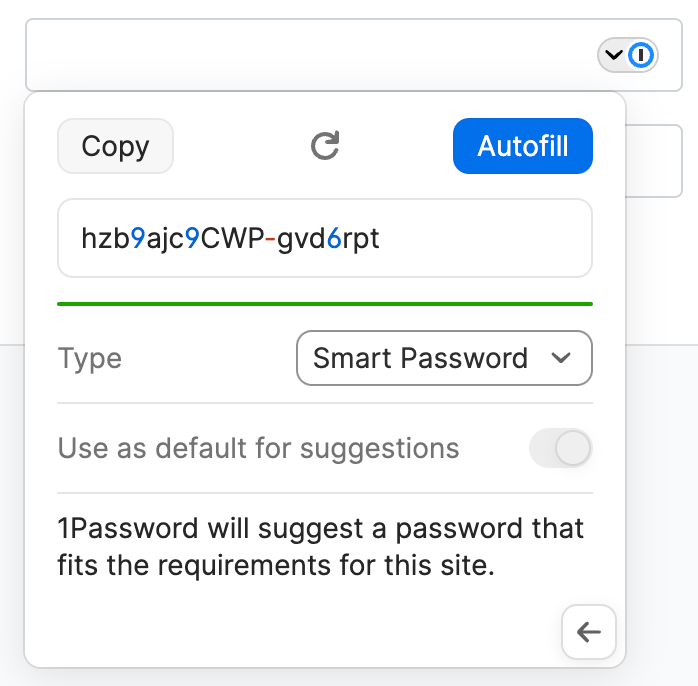
Example from 1Password documentation. Generate your own unique password; do not use the password shown in this example. Source: 1Password Support.
Changing a password only inside a saved 1Password item does not change it on the website. Complete the website's password-change process and keep the saved item in sync with it.
Use the app or extension's Lock command when you are finished. Unlock it again when you need to use a saved item.
If autofill or sign-in does not work
Check that the extension is enabled in your current browser profile, that 1Password is unlocked, and that the correct work account and vault are available. Confirm that the saved website address matches the site you are using.
If you cannot unlock 1Password or it asks for a Secret Key you cannot find, use Find your 1Password Secret Key or request account recovery.
For other problems, contact 2Fifteen Tech support with your browser, device type, and the exact error. Do not include passwords, Secret Keys, setup codes, or screenshots that reveal saved credentials.
Official instructions
- 1Password: Get started as a team member
- 1Password: Save and fill logins in your browser
- 1Password: Get to know the Mac app
- 1Password: Get to know the Windows app
Last reviewed: November 3, 2026.