
Iru Self Service for macOS
Self Service is a built-in app on managed Mac computers that lets you install IT-approved software without submitting a ticket. When your Mac enrolled with Iru Endpoint, this app was automatically installed.
What You Can Do with Self Service
- Install apps – Browse and install IT-approved software
- View device info – See your Mac's OS version, storage, battery, and connected displays
- Manage updates – View available and recently installed app updates
- Access bookmarks – Open links to essential work resources
- Sync your device – Manually initiate a check-in with the management server
How to Open Self Service
You can open Self Service using any of these methods:
Option 1: Menu Bar (Recommended)
- Click the Iru Endpoint icon in your menu bar (top-right of screen)
- Hover over Iru Endpoint Self Service
- Click Open
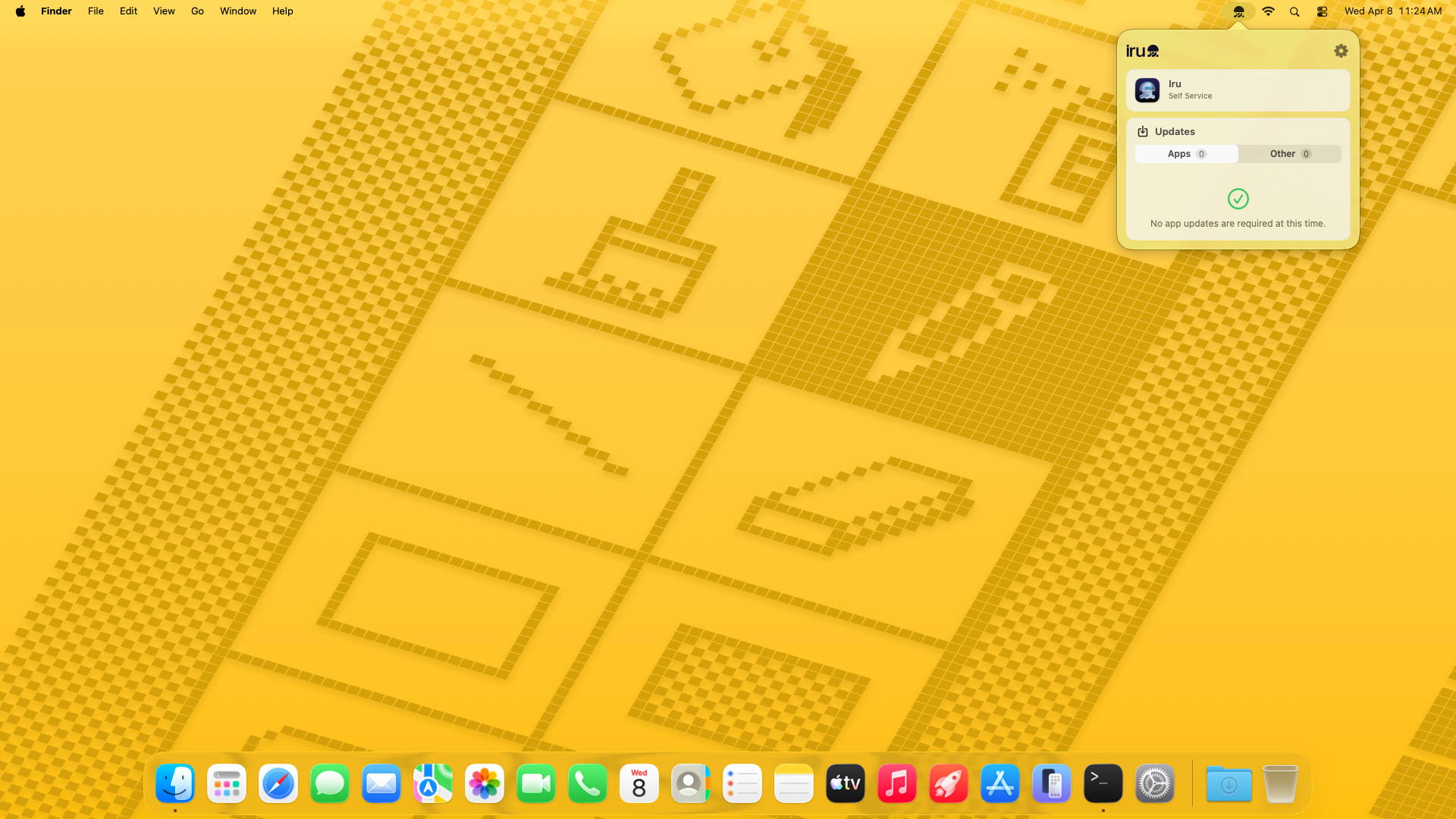
Option 2: Launchpad
- Click Launchpad in your Dock
- Click the Self Service app icon
Option 3: Finder
- Open Finder
- Go to Applications in the sidebar
- Double-click Iru Endpoint Self Service
Note – The full path to the app is
/Applications/Iru Endpoint Self Service.app
Navigating Self Service
The left sidebar contains all your navigation options:
| Section | What It Shows |
|---|---|
| All | Every app and item available to your device |
| Recommended | Apps marked by IT as important (shown with a star icon) |
| Bookmarks | Quick links to work resources |
| Device Info | Your Mac's specs: OS version, battery, storage, displays |
| Updates | Apps ready to update and recently updated apps |
Use the Search bar at the top to quickly find specific apps.
Installing Apps
- Find the app you want (browse categories or use Search)
- Click the Install button next to the app
- Wait for the download and installation to complete
- The button changes to Open when finished
After Installing an App
Click the three dots (•••) next to the Open button to access additional options:
- Reinstall – Reinstall the app if something isn't working
- Show in Finder – Open the folder where the app is located
- Add to Dock – Pin the app to your Dock for quick access
- Support – Open the app's support page
- Show in App Store – View the app in the Mac App Store (if applicable)
Syncing Your Device
If IT asks you to sync your Mac, click the Sync button in Self Service. This forces a check-in with the management server and can help resolve issues with missing apps or settings.
Note – Self Service will automatically close after 15 minutes of inactivity if an agent update is pending.
Show or Hide the Menu Bar Icon
To Show the Menu Bar Icon
- Open Self Service
- In the menu bar, click Help
- Click Show Iru Endpoint Menu
To Hide the Menu Bar Icon
- Click the Iru Endpoint icon in your menu bar
- Click the gear icon (settings)
- Select Hide Iru Endpoint
Troubleshooting
| Issue | Solution |
|---|---|
| Self Service won't open | Restart your Mac and try again. Check that your Mac is connected to the internet. |
| App won't install | Click the Sync button and wait a few minutes, then try the install again. |
| App is missing from Self Service | The app may not be assigned to your device. Contact IT to request access. |
| Menu bar icon is missing | Open Self Service, go to Help > Show Iru Endpoint Menu. |
| Self Service closes unexpectedly | An agent update may be pending. Let the update complete, then reopen Self Service. |
Quick Reference
| Item | Details |
|---|---|
| App Location | /Applications/Iru Endpoint Self Service.app |
| Open via URL | iru-endpoint://open-app/self-service |
| Deep Link to Item | iru-endpoint-self-service://library/items/<ID> |