
Iru End User Enrollment Steps
Note – Need Help? Contact 2Fifteen Tech support.
Enrollment Steps
1. Download the Installer
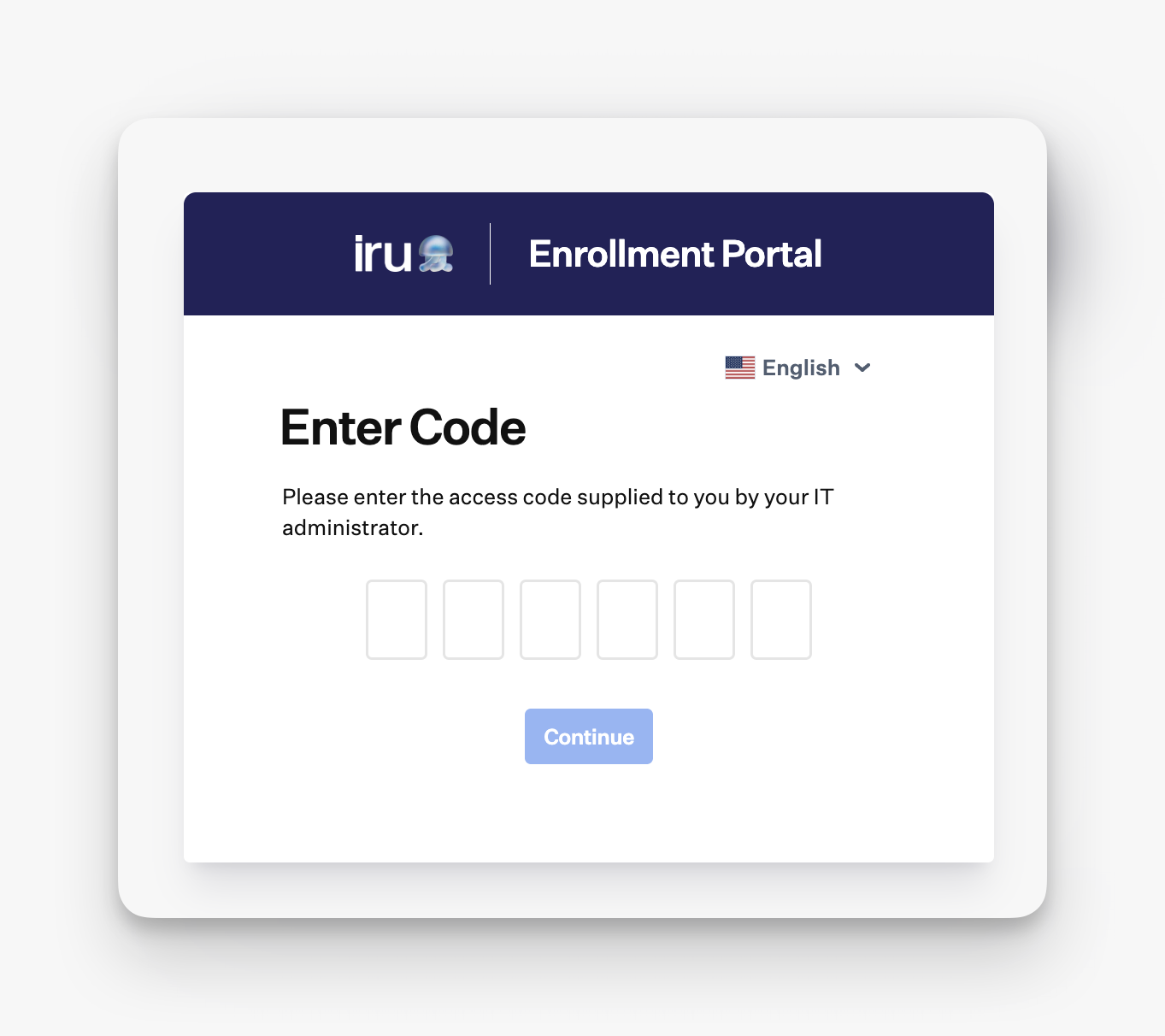
Use Safari to visit the enrollment URL provided by 2Fifteen Tech:
https://[instance].iru.com/enroll/access-code/[enrollment code]
If prompted, enter the access code provided by 2Fifteen Tech, then click Download Iru.
Note – Chrome Users: You may see a warning that the file "may be harmful." This is normal for management profiles. Click Keep file to continue.
2. Open the Enrollment Profile
Locate and open the iru-enroll.mobileconfig file in your Downloads folder.
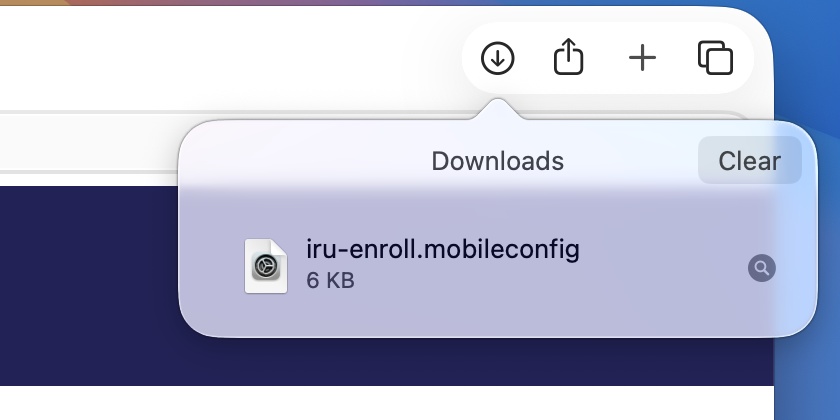
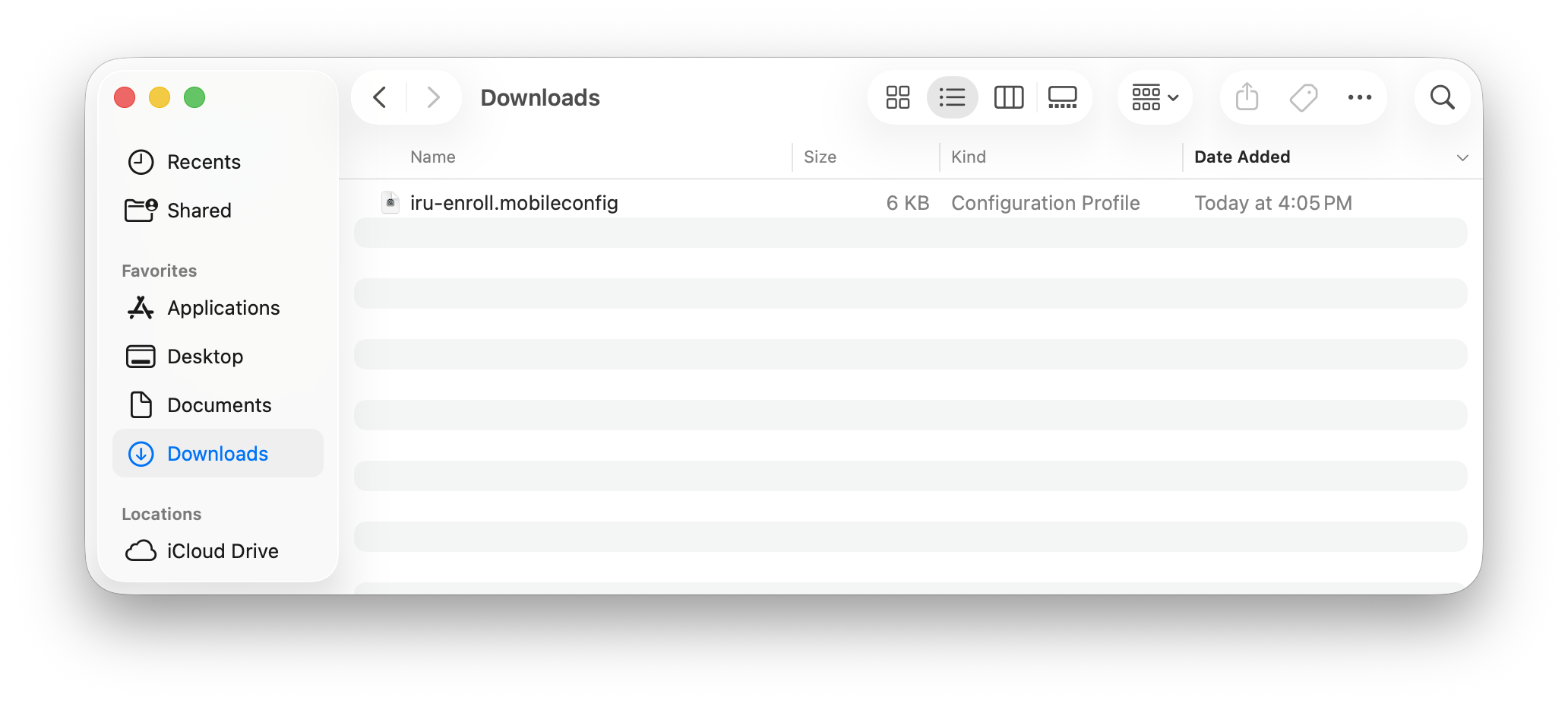
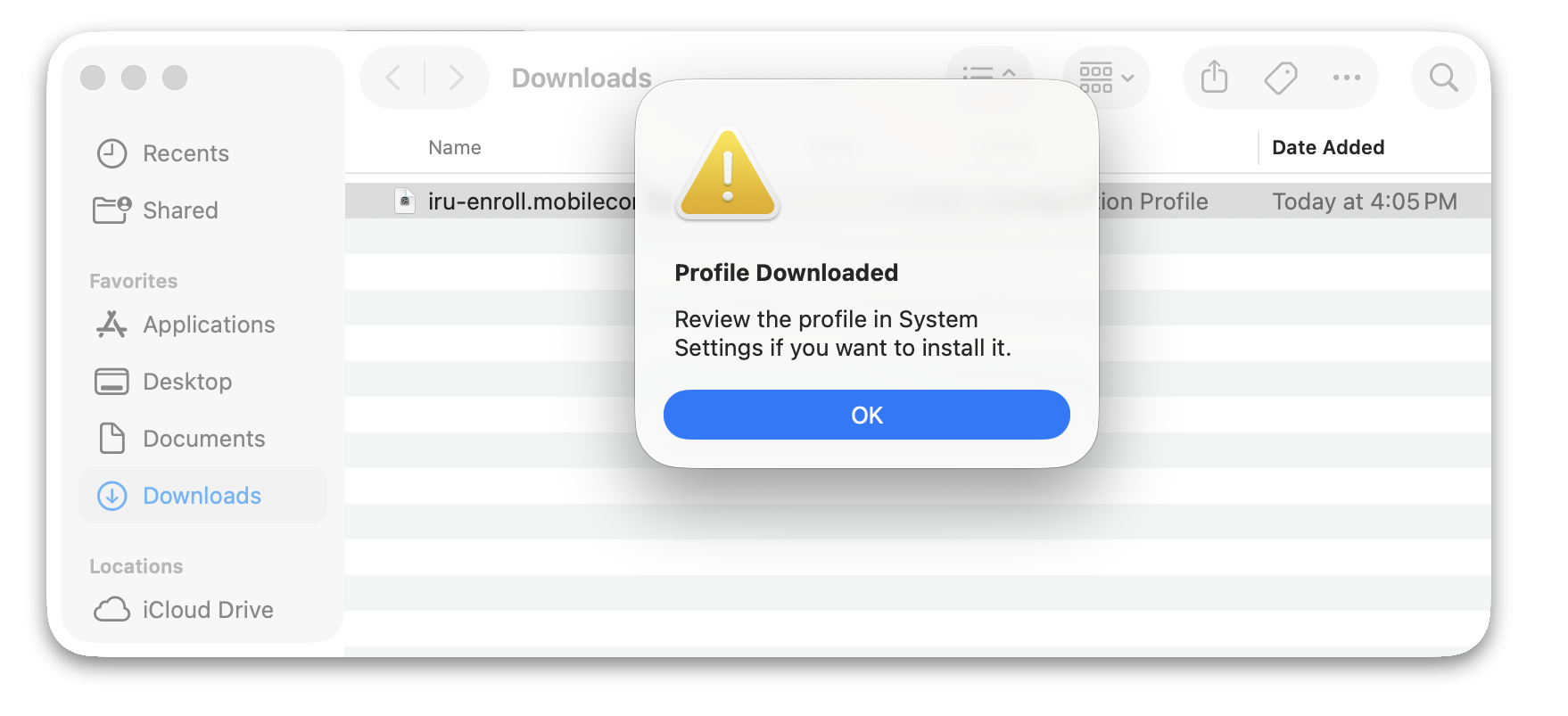
Note – Note: Clicking the "Profile installation" notification will NOT open System Settings. You must manually open the file.
3. Install the Profile
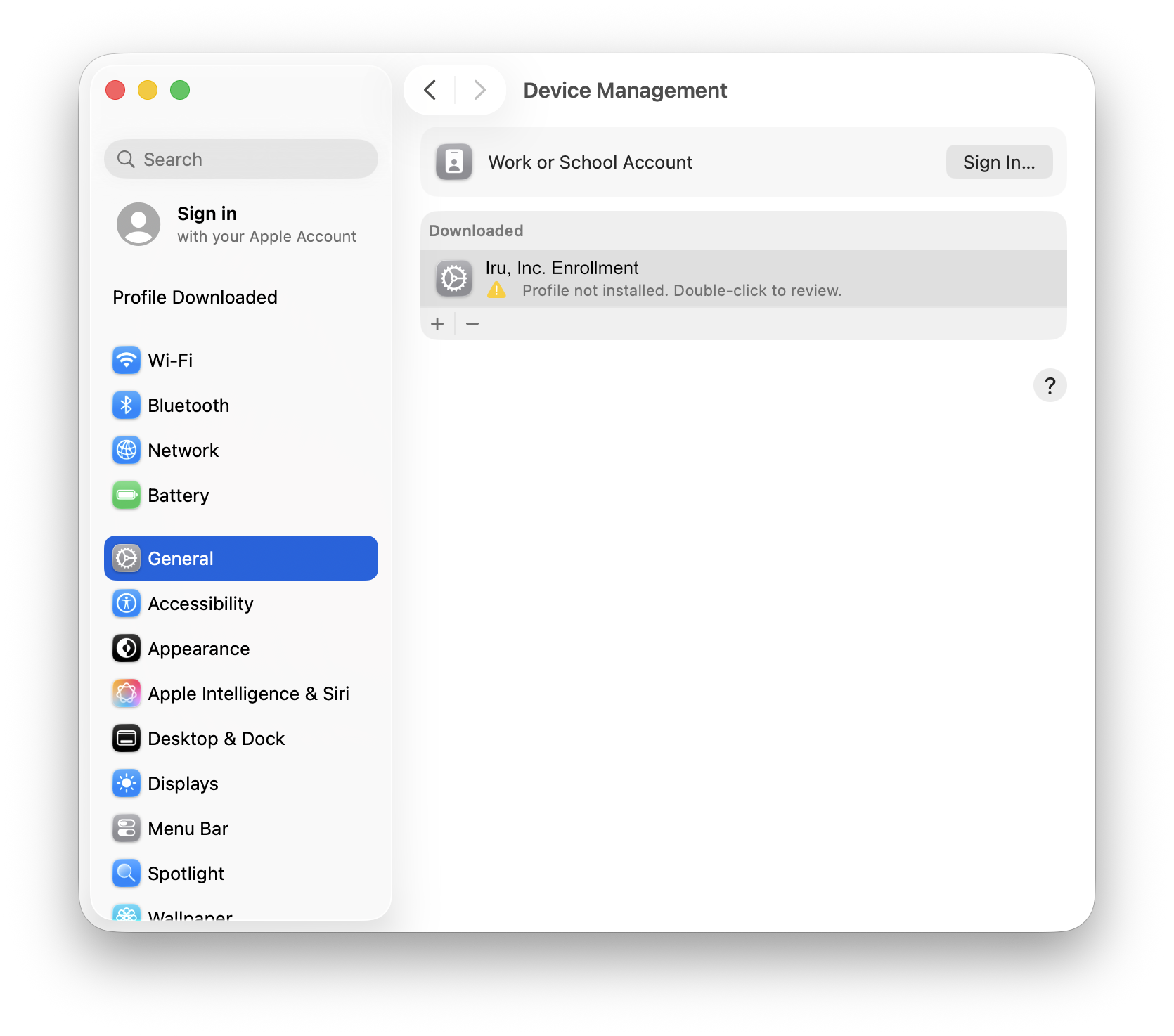
Open the Profiles settings:
macOS 15+: System Settings → General → Device Management
macOS 13: System Settings → Privacy & Security → scroll to Profiles
macOS 11/12: System Preferences → Profiles
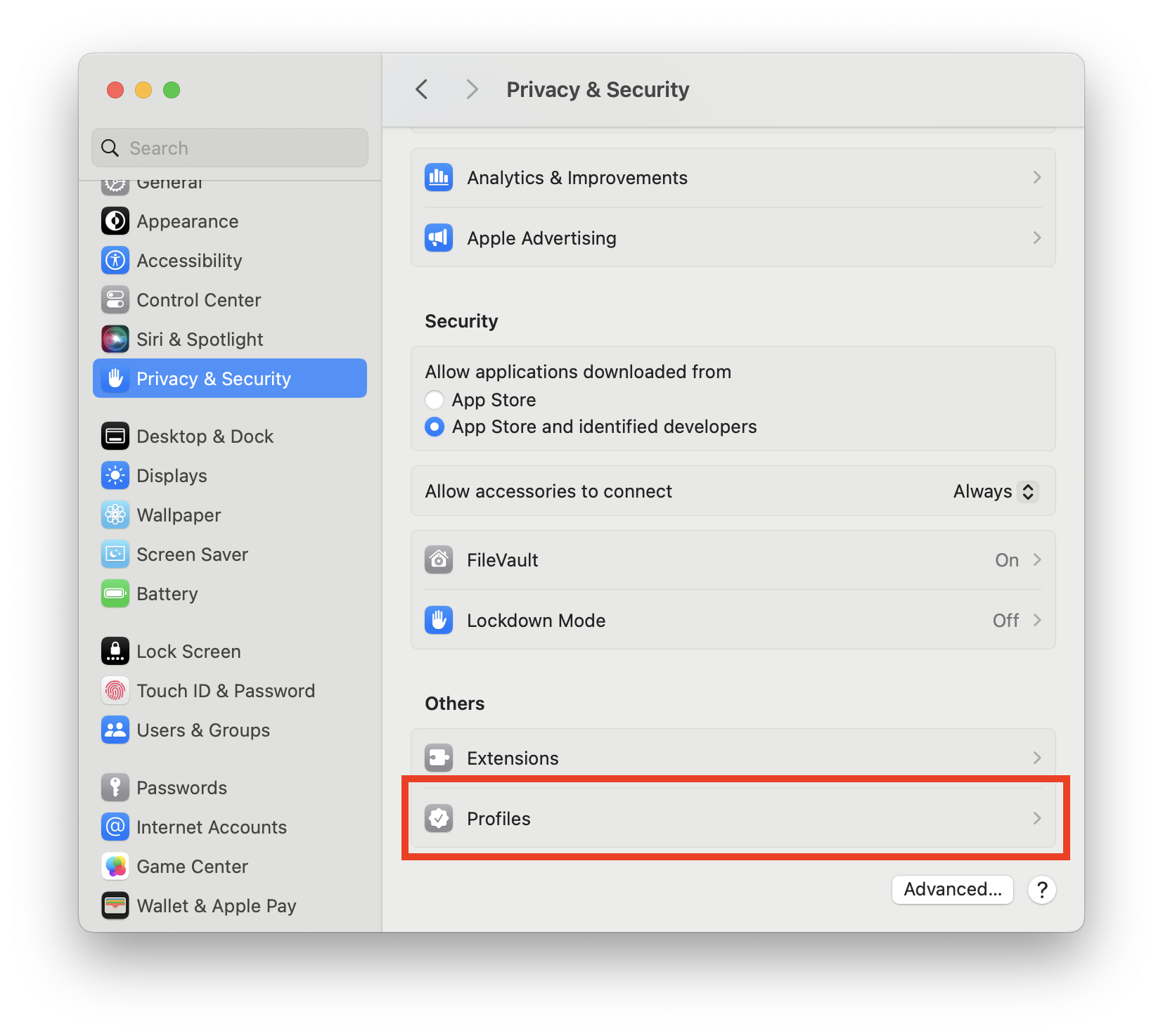
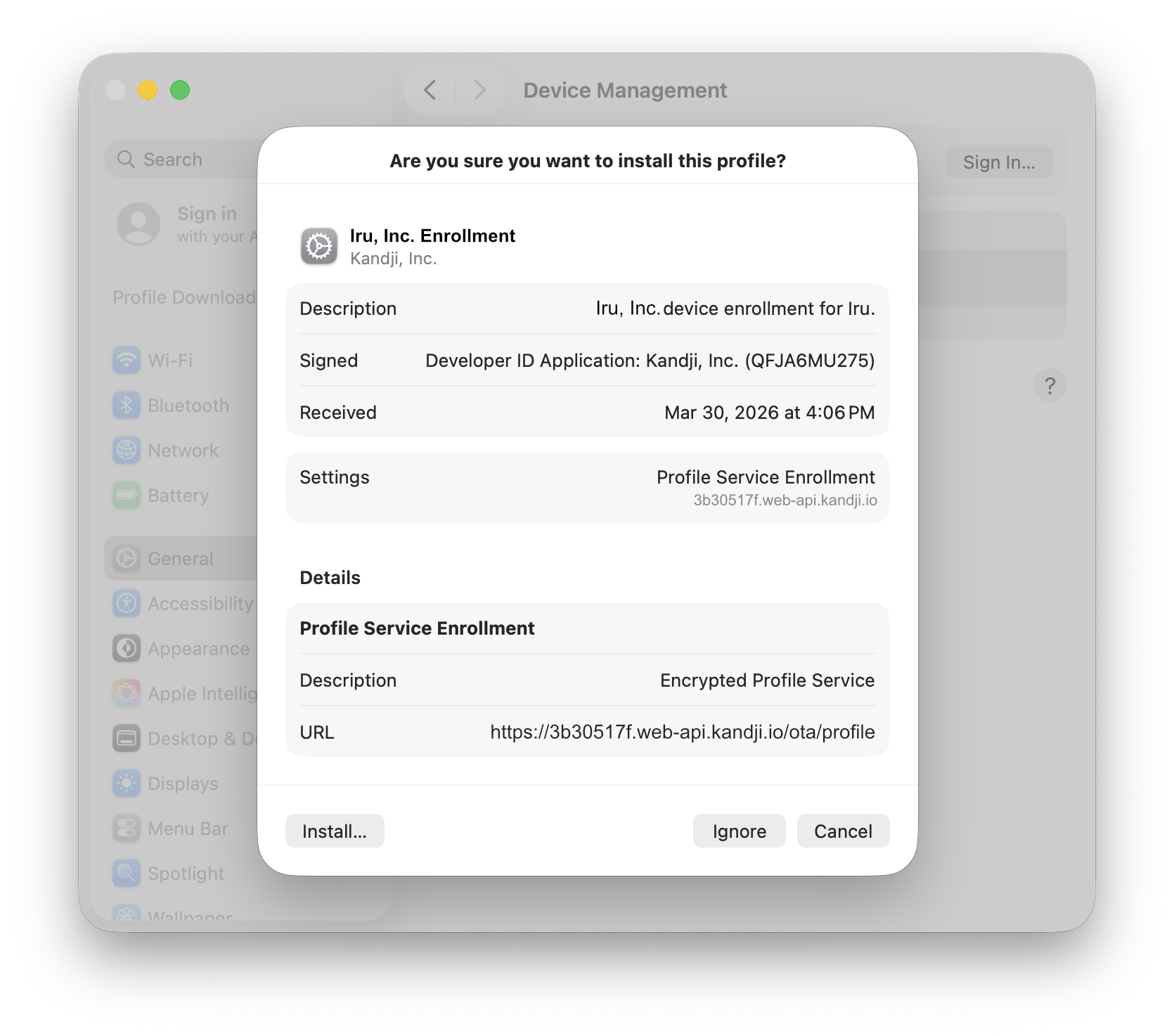
Follow the prompts to install the MDM profile. When prompted, enter your Mac administrator username and password.
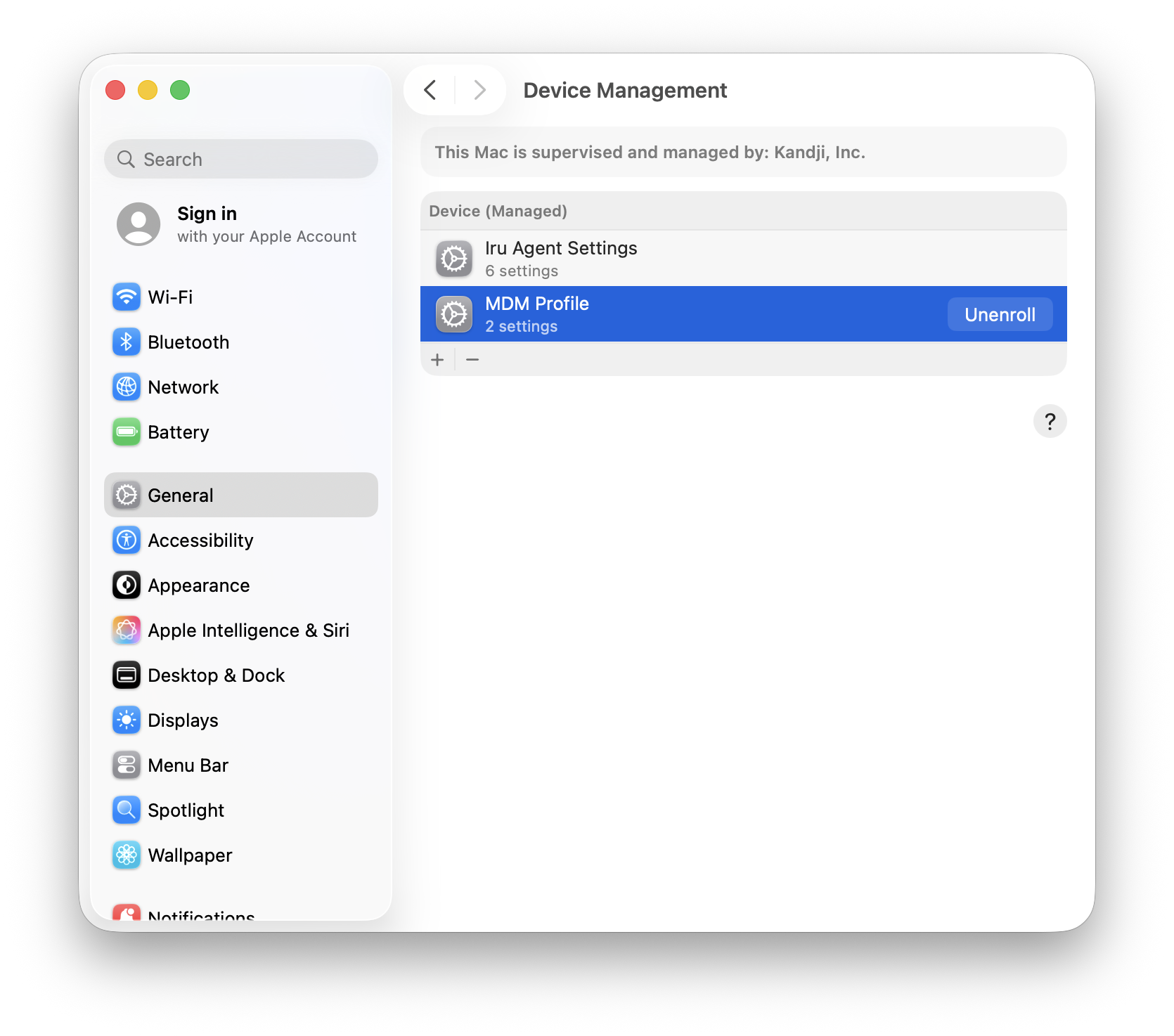
After Enrollment
The Iru icon will appear in your menu bar once enrollment is complete.

Tip – Done! Your Mac is now enrolled and managed.