
How to find your computer's serial number and name
Sometimes 2Fifteen Tech needs to know exactly which computer you are using, for example to set it up in our management tools or to make sure we are working on the right machine. This takes about a minute. Use the section that matches your device, then send us what you find.
- Mac (MacBook, iMac, Mac mini): we need the serial number.
- Windows PC or laptop: we need the computer name and the serial number.
- iPhone or iPad: we need the serial number.
Mac
- Click the Apple logo in the top-left corner of your screen, then click About This Mac.
- A small window opens. Your Serial number is listed there: a mix of letters and numbers, usually 10 to 12 characters long.
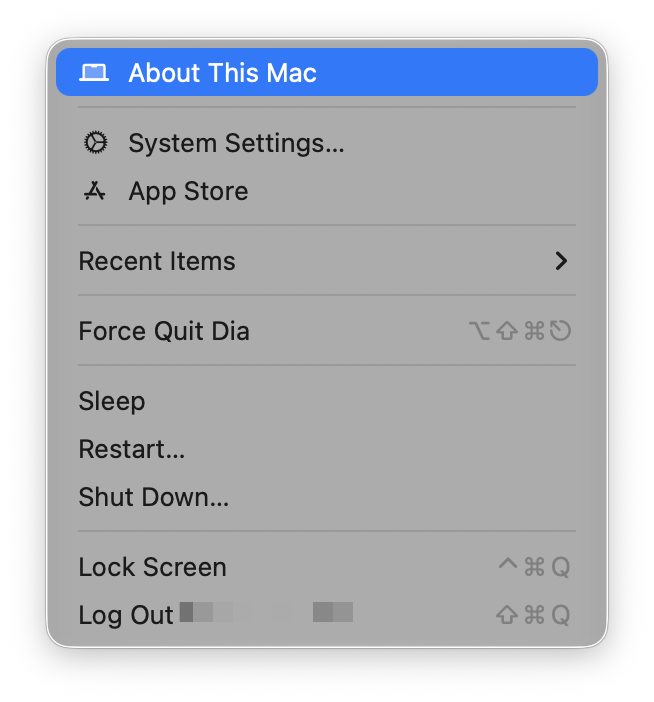
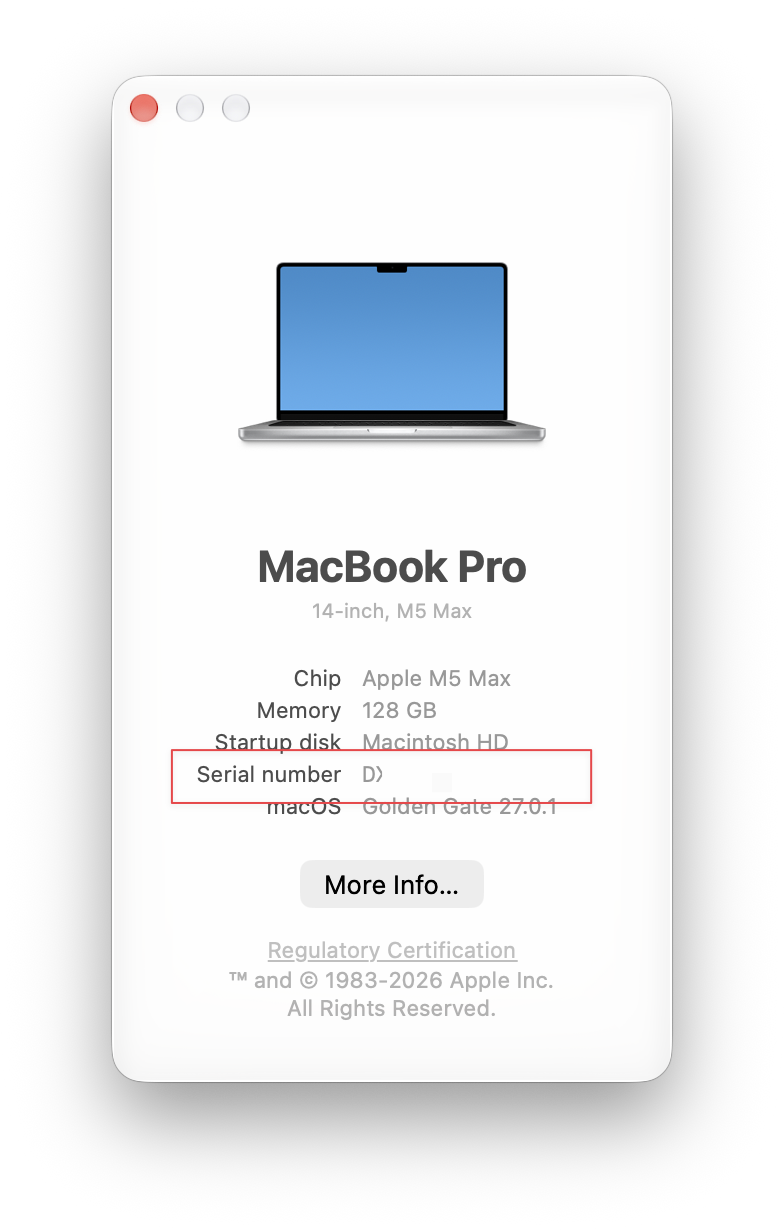
Tip – To copy the serial number instead of typing it, double-click it to select it, then press Command + C. You can paste it into your email with Command + V.
Windows PC or laptop
Step 1 – Find your computer name
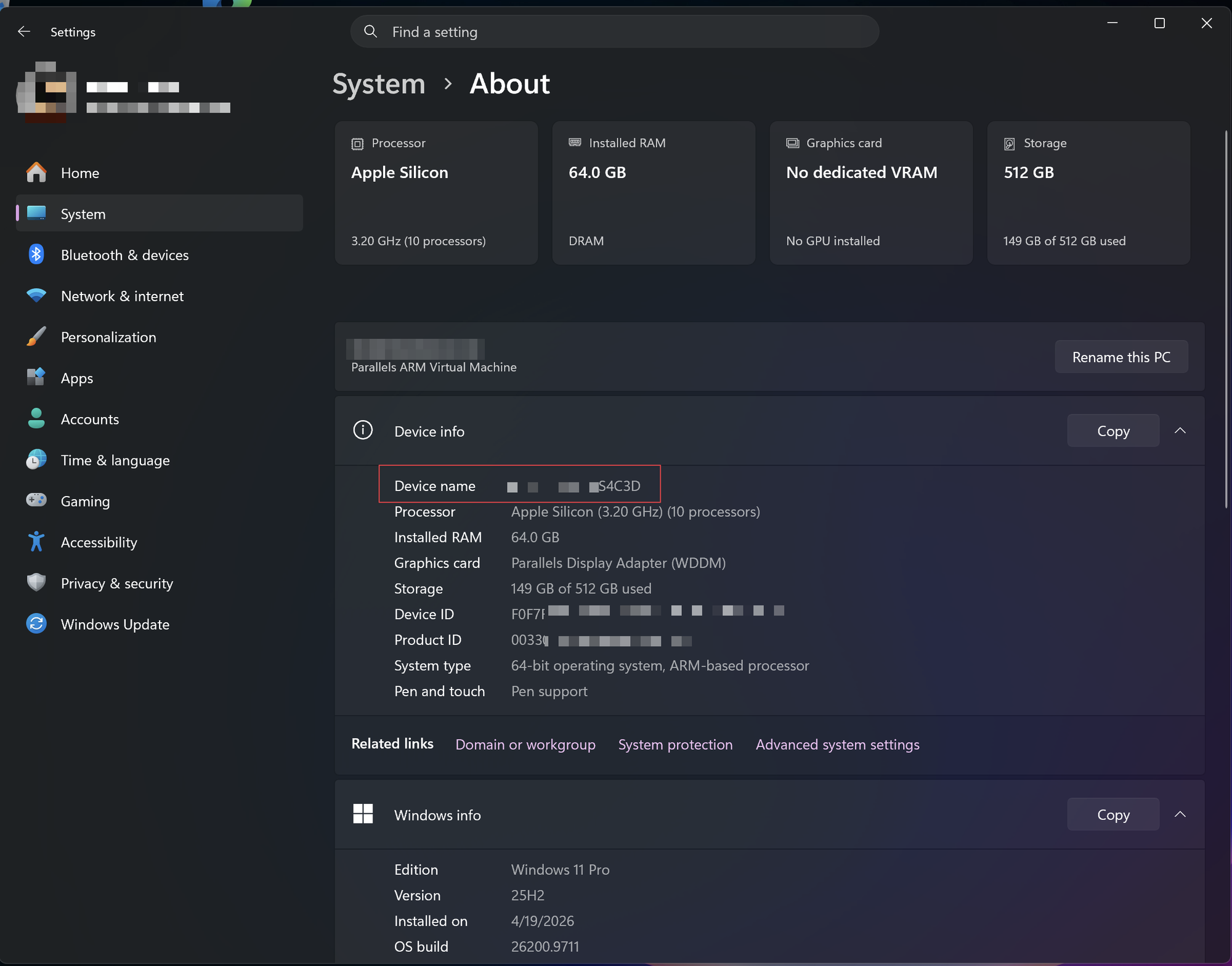
- Right-click the Start button (the Windows logo at the bottom of your screen) and click Settings.
- Click System in the list on the left, then scroll to the bottom of the page and click About.
- Your computer name is listed next to Device name. It is also shown in large text near the top of the page.
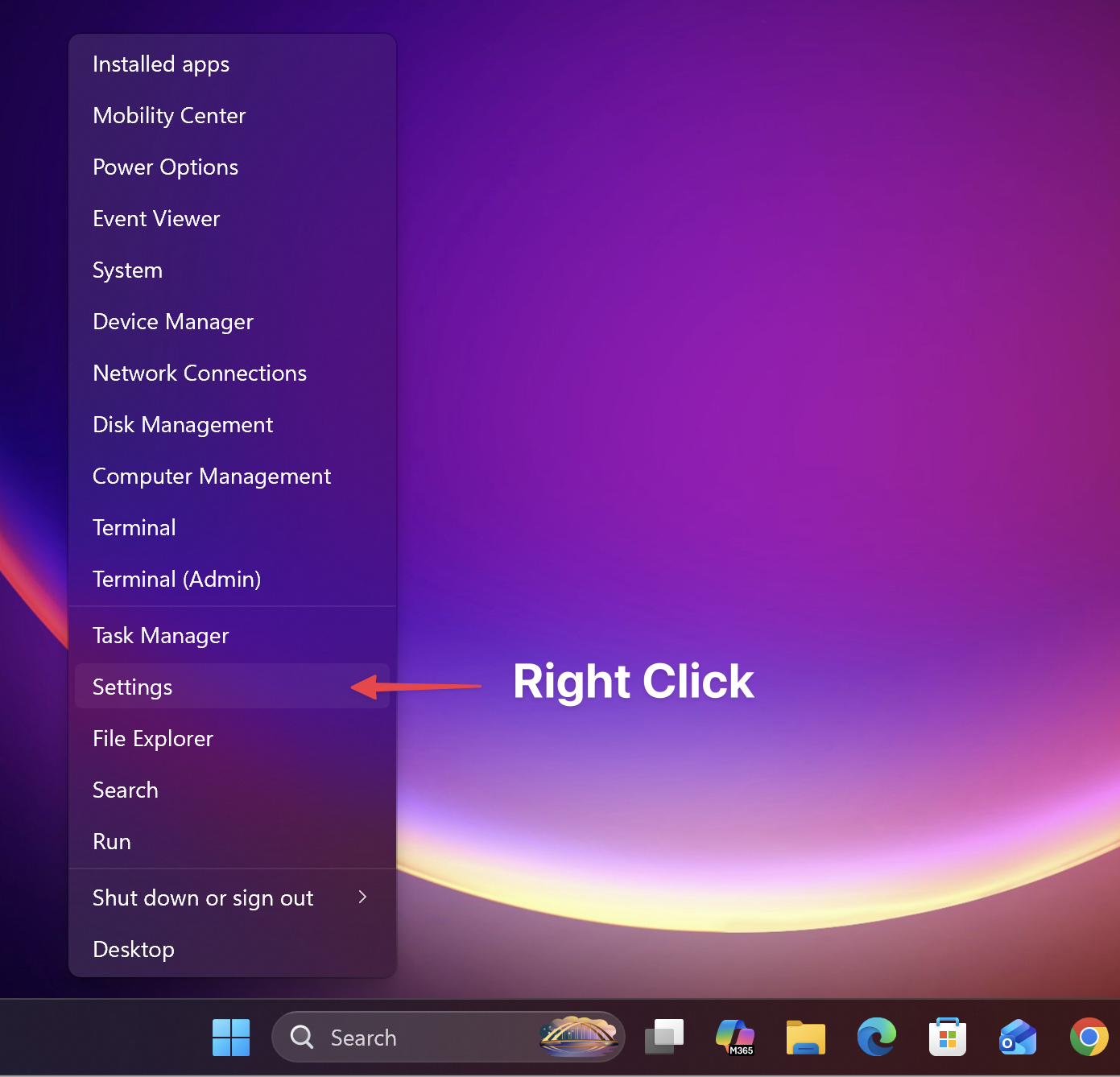
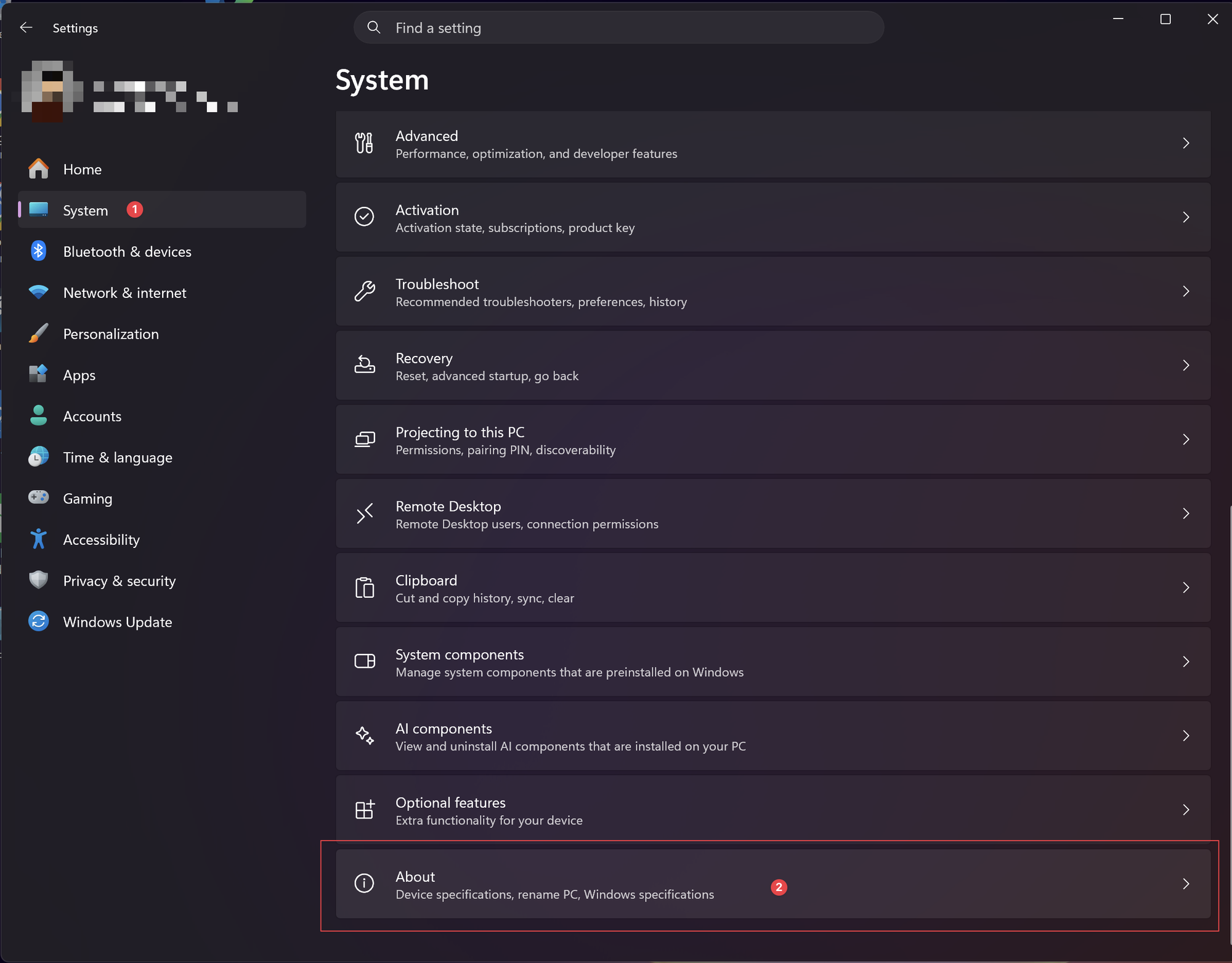
Step 2 – Find your serial number
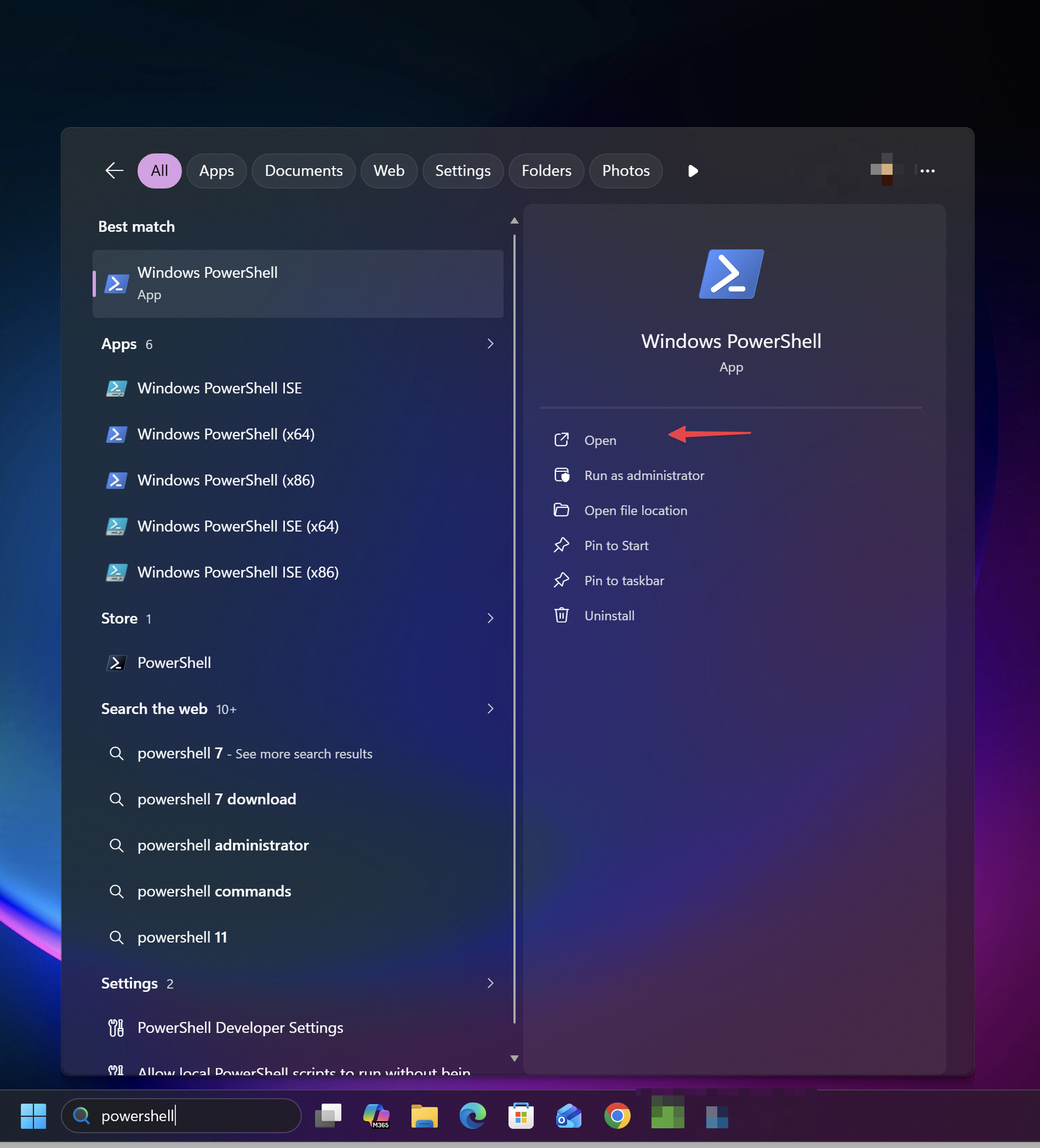
- Click the Start button (or the search box next to it) and type powershell.
- Under Windows PowerShell, click Open. A window with a dark background opens.
No admin account needed – This works from a normal user account. Click Open, not Run as administrator. If Windows asks for an administrator password, close that prompt and click Open instead.
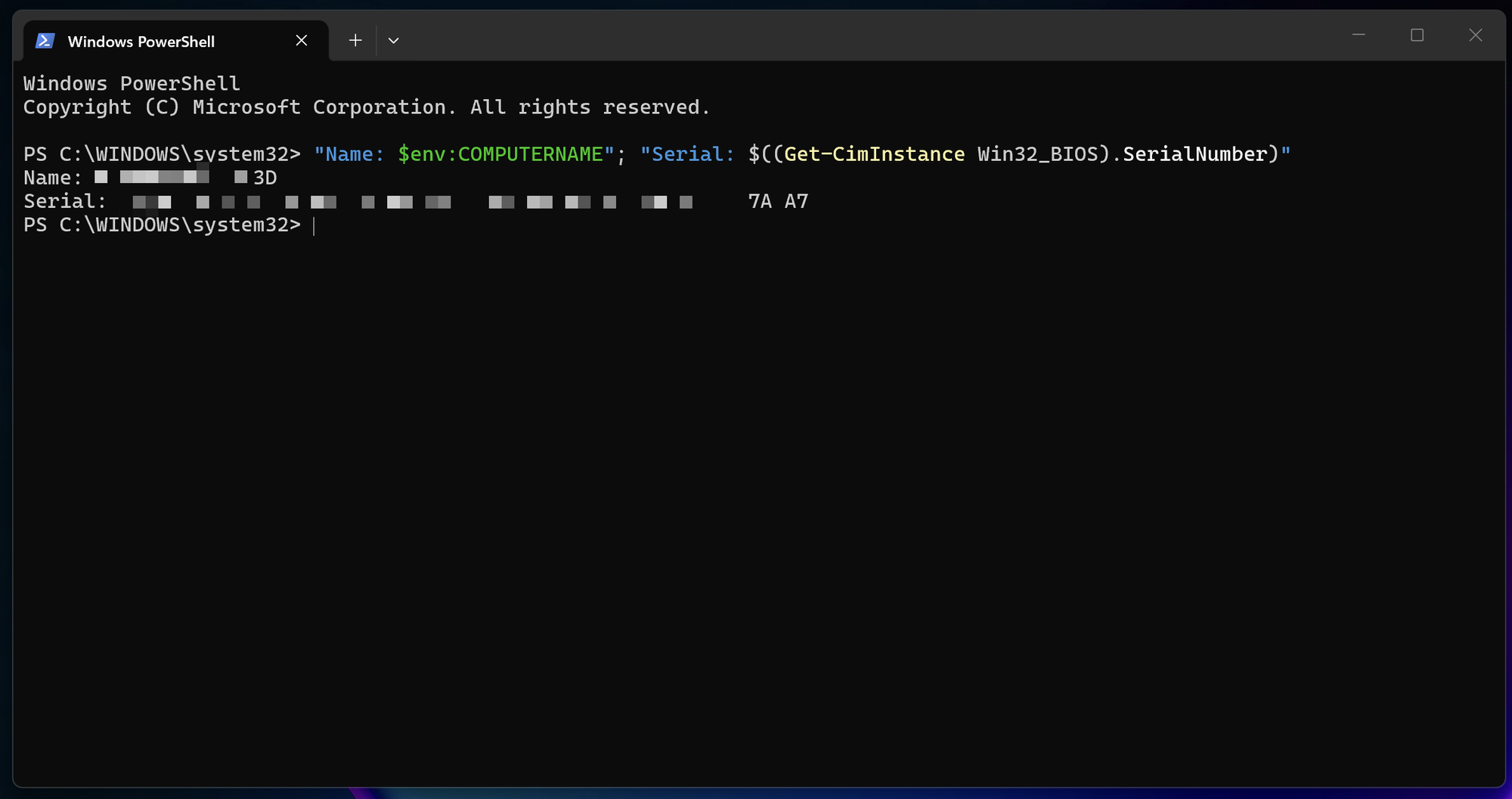
- Copy the line below, paste it into the window (right-click inside the window to paste), and press Enter:
"Name: $env:COMPUTERNAME"; "Serial: $((Get-CimInstance Win32_BIOS).SerialNumber)" - The window shows two lines: your computer name and your serial number.
- Select both lines with your mouse, press Ctrl + C to copy them, and paste them into your email to us. You can then close the window.
No luck? – The serial number is also printed on a sticker on the bottom or back of most laptops and desktops. On Dell computers it is called the Service Tag, a 7-character code. A photo of the sticker works fine too.
Windows screenshots used with permission from Microsoft.
iPhone or iPad
- Open the Settings app.
- Tap General, then tap About.
- The serial number is shown next to Serial Number. Touch and hold it to copy it.
Sending it to us
Contact 2Fifteen Tech support with the serial number, plus the computer name if you are on Windows. Let us know whose computer it is, too.
Copying and pasting is best, because letters like O and 0 are easy to mix up. A clear photo of your screen or the sticker is also fine.