
Report a suspicious email to 2Fifteen Tech
In this article
In this article group
If an email asks you to sign in unexpectedly, change payment details, open an unusual attachment, or provide private information, pause before interacting with it.
If you have not clicked anything
Do not follow links, open attachments, reply to the sender, or use contact details supplied by the suspicious message. If you need to verify a request, use a contact method you already trust.
Contact 2Fifteen Tech support if you are unsure whether the message is genuine or want us to investigate. Include the sender, subject, when it arrived, and what concerns you. Preserve the original message so we can identify it.
Report it in Gmail
On a computer, open the message in Gmail without opening its links or attachments.
Select More (the three dots next to Reply on that message).
Select Report phishing.
Report it in Outlook
Select the message, then look for Report > Report phishing on the toolbar or ribbon. Your organization may provide a different reporting button. If you cannot find it, contact support instead.
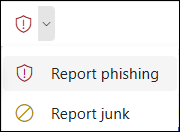
Example of Outlook's Report menu. Your organization's reporting button may look different. Source: Microsoft Support.
Reporting through Gmail or Outlook does not necessarily create a request with 2Fifteen Tech. Contact us separately when you need help or have interacted with the message. Reporting a message also does not guarantee that every future message from that sender will be blocked.
If you clicked, downloaded, or entered information
Contact 2Fifteen Tech support promptly. Tell us what happened, when it happened, and which device and work account were involved. In particular, mention if you:
Entered a password, verification code, or sensitive information.
Approved an unexpected sign-in notification.
Downloaded, opened, or ran a file.
Sent money or changed payment information.
Stop interacting with the message or site. Do not send us your password or verification codes. We will help you work through the next steps for your account or device.
If we ask for the Message ID
A Message ID helps identify the exact email. Follow the guide for Gmail / Google Workspace or Outlook / Microsoft 365. Share the details privately with support.
Official instructions
Last reviewed: October 30, 2026.