
How to find a Message ID in Outlook / Microsoft 365
When 2Fifteen is investigating a specific email — for example tracing where a message was delivered, why it was blocked, or whether it's part of a phishing campaign — we'll sometimes ask you for the Internet Message ID of the email in question.
The Message ID is a unique fingerprint assigned to every email when it's first sent. It looks something like this:
<AS8PR04MB8404B0F2C2E5F0F8F3F7E9CDE5A12@AS8PR04MB8404.eurprd04.prod.outlook.com>
Yours will look different, but it always:
- starts with
<and ends with>, - contains an
@symbol, and - ends with a domain name.
Note – Note – Send us the full string, including the
<and>brackets. That's the most reliable way for us to pull message trace data and tell you exactly what happened.
Below are step-by-step instructions for the four common ways people use Outlook. Use the section that matches how you read your email.
Option 1 – Outlook on the web (outlook.office.com or outlook.com)
Use this if you read mail in a web browser (Chrome, Edge, Safari, Firefox).
- Open the email you want us to investigate.
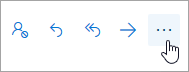
- Look at the top-right corner of the message (above the message body, to the right of the Reply / Reply All / Forward buttons). Click the More actions button — it's the icon with three horizontal dots:
- From the menu that opens, hover over View, then click View message details.
- A panel will slide in from the right showing the raw message headers. Scroll until you find the line that begins with:
Message-ID: - The value on that line — including the
<and>brackets — is what we need. Select the entire value, copy it, and paste it into your reply to us.

Option 2 – New Outlook for Windows and New Outlook for Mac
Use this if you've switched to the “New Outlook” (the toggle at the top right of Outlook is set to New Outlook).
The steps are the same as Outlook on the web:
- Open the email.
- Click the More actions (three-dot) button at the top right of the message:
- Choose View → View message details.
- Scroll to the line beginning with
Message-ID:and copy the value (including< >).
Option 3 – Classic Outlook for Windows
Use this if you're on the older Outlook for Windows with the ribbon (File / Home / Send & Receive / Folder / View tabs across the top), and the toggle at the top right is set to Classic Outlook (or there is no toggle).
- Double-click the email in your inbox so it opens in its own window.
Note – Note – The Properties option isn't available from the reading pane. The message has to be in its own window.
- In the open message window, click the File menu (top-left).
- Click Properties.
- A small window will open. The bottom half is labeled Internet headers and contains a block of text.
- Click anywhere in the Internet headers box and press Ctrl + A to select all, then Ctrl + C to copy. Paste it into Notepad so you can read it.
- Find the line that begins with
Message-ID:and copy that value (including< >) into your reply to us.
Note – Tip – If it's easier, you can just paste the entire Internet headers block into your email to us — we'll find the Message ID on our end.
Option 4 – Classic Outlook for Mac
- In your inbox, right-click (or hold Control and click) the email.
- Choose View Source from the menu.
- The full raw message opens in a TextEdit window.
- Press Cmd + F, search for
Message-ID:, and copy the value (including< >) into your reply to us.
What to send back to us
A reply with just the Message ID line is enough. For example:
Hi — here's the Message ID for the email I asked about:
<AS8PR04MB8404B0F2C2E5F0F8F3F7E9CDE5A12@AS8PR04MB8404.eurprd04.prod.outlook.com>
If you can't find the Message ID, or your version of Outlook doesn't look like any of the screens above, just forward the original email to us as an attachment:
- Outlook on the web / New Outlook: open the email → More actions (three dots) → Forward as attachment.
- Classic Outlook for Windows: select the email in the inbox → Home ribbon → More → Forward as Attachment (or press Ctrl + Alt + F).
Note – Important – Forwarding as an attachment preserves the headers. A regular forward does not.
Why we ask for this
The Message ID is the only identifier that stays the same as a message travels through mail servers. With it we can:
- locate the exact message in Exchange Online's message trace logs,
- confirm whether it was delivered, quarantined, or filtered,
- correlate it across sender and recipient sides if both are Microsoft 365 tenants,
- pass an unambiguous reference to Microsoft support if escalation is needed.
Subject lines and sender addresses can be reused, faked, or shared by many emails; the Message ID is unique to one specific message.