
OneDrive is not syncing on your computer
If a OneDrive or SharePoint file is not updating in Finder or File Explorer, work through these checks. Syncing and file permissions are separate: if a link says you need access, use Open a shared SharePoint file with the right account.
1. Check the file in your browser
Open your organization's OneDrive or SharePoint site using your work account. Check whether the latest version of the file is available there. You can often work in the browser while a desktop sync issue is investigated.
If your computer has newer changes that are missing online, preserve that local copy. Tell support where those changes are before resetting or reconnecting anything.
2. Open OneDrive and check the account
- Windows: Select the OneDrive cloud in the taskbar near the clock. Check the hidden-icons arrow if you do not see it.
- Mac: Select the OneDrive cloud in the menu bar.
If no cloud is present, open OneDrive from the Start menu or Applications. If you have personal and work accounts, make sure you are checking the work account that owns or can access the affected files.
3. Read the status message
- Paused: Choose Resume syncing, or select the paused message in OneDrive.
- Not signed in: Sign in with the work account you use for those files.
- Processing changes: Allow time for recent changes to finish. If the status is not progressing, try the pause/resume step below.
- Storage full or another error: Note the exact message. Contact support before deleting work to free space.
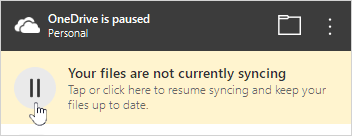
Microsoft example of the paused-sync message. This example shows a personal account; select your work account when following this guide. Your version may look different. Source: Microsoft Support.
4. Try pausing and resuming
Save and close the affected file. In the OneDrive menu, select Pause syncing, then resume it. Menu placement varies by version. Keep the computer connected to the internet and check whether the status changes. If needed, save your work and restart the computer once.
Understand online-only files
A cloud icon beside a file can mean it is stored online and downloads when you open it. That does not by itself indicate a sync failure. If a file opens in the browser but not on your computer, send us the desktop error.
When to contact 2Fifteen Tech
If syncing still fails, contact 2Fifteen Tech support with your work email, Mac or Windows version, OneDrive's status or error, the affected folder or library, and whether the latest file appears online. Mention any changes that exist only on your computer.
Please contact us before unlinking the account, reinstalling OneDrive, resetting its data, or deleting a synced folder. Those steps need care when work has not finished uploading.
Official instructions
- Microsoft: Troubleshoot OneDrive sync problems
- Microsoft: Pause and resume OneDrive
- Microsoft: Sync SharePoint and Teams files
Last reviewed: October 30, 2026.