
Open and use a shared mailbox in Outlook
A shared mailbox lets an approved group of people work from the same mailbox. Use your own Microsoft 365 work account to access it; you do not need a separate shared-mailbox password.
Before you start
Your organization must grant you access first. Knowing the mailbox address or adding it to Outlook does not grant permission. Permission to open and manage mail is separate from permission to send as the mailbox or send on its behalf.
Have the shared mailbox's email address ready, then use the section for your version of Outlook.
Outlook on the web
- Open Outlook on the web and sign in with your own work account.
- Select your name or profile icon, then Open another mailbox.
- Enter the shared mailbox address, select the matching result, and choose Open. The mailbox opens separately.
To keep it in your normal folder list instead, right-click Folders and select Add shared folder or mailbox. Enter the shared mailbox address and add it.
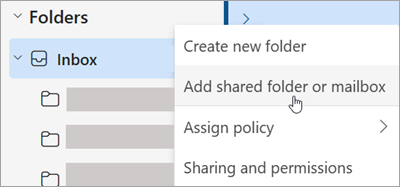
Microsoft example: add a shared mailbox from the Folders menu. Source: Microsoft Support.
New Outlook for Windows
After access has been granted, restart Outlook and check your folder list. The mailbox may appear under Shared with me.
If it does not appear, right-click your work account name in the folder pane, choose Add shared folder or mailbox, and enter the shared mailbox address. Expand its folders to find the Inbox.
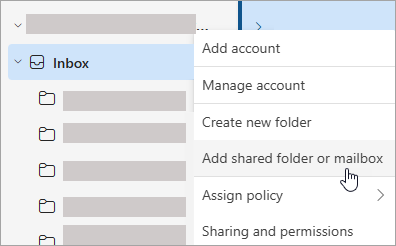
Microsoft example: add a shared mailbox from your work account menu. Source: Microsoft Support.
Classic Outlook for Windows
Restart Outlook first; shared mailboxes often appear automatically after permission is granted. If yours is still missing:
- Go to File > Account Settings > Account Settings.
- On the Email tab, select your work account and choose Change.
- Select More Settings > Advanced > Add, then enter the shared mailbox address.
- Confirm the dialogs and finish closing Account Settings. Restart Outlook if needed.
Outlook for Mac
- In the Tools menu, open Accounts and select your work account.
- Select Delegation and Sharing > Shared With Me.
- Use + to find and add the shared mailbox.
Some versions also offer File > Open > Shared Mailbox. If your menus differ, contact support with your Outlook version or try Outlook on the web.
Outlook on iPhone or Android
With your work account already added to Outlook, open the account menu, choose Add Account > Add a Shared Mailbox, select your work account if asked, and enter the shared mailbox address. Follow the prompts to add it.
Send from the shared address
When composing or replying, check the From address before sending. Choose the shared address when that is the intended sender. If it is missing from the list, use Other email address where available and enter it.
If the From field is hidden, look for Show From in the message's options. In classic Outlook for Windows, use Options > From.
If you can read mail but sending fails, contact 2Fifteen Tech support. Your sending permissions may need review. Depending on the access granted, recipients may see the shared mailbox alone or your name on behalf of the mailbox.
If it still does not work
Contact 2Fifteen Tech support with your work email, the shared mailbox address, your Outlook version, and the exact error. Tell us whether opening it in the browser works and whether the problem is reading or sending. Crop screenshots so unrelated messages are not included.
Changes to shared mailbox messages can affect other team members. For its calendar, see Open a shared calendar in Outlook.
Official instructions
- Microsoft: Open and use a shared mailbox
- Microsoft: Shared mailboxes in Outlook for Mac
- Microsoft: Add a shared mailbox to Outlook mobile
Last reviewed: November 3, 2026.