
Gmail Delegate Access Instructions - End User
This guide explains how to access a Gmail account you've been granted delegate access to. As a delegate, you can read, send, and manage emails on behalf of the account owner.
What Delegates Can Do
As a delegate, you have access to:
- Read emails – View all messages in the inbox and folders
- Send emails – Send messages on behalf of the account owner
- Delete emails – Remove messages from the account
- Organize emails – Apply labels, archive, and move messages
- Manage settings – Modify some account settings
Delegates cannot:
- Change the account password
- Use Google Chat as the account owner
- Use Smart Compose, spelling/grammar checks, or autocorrect
Note – When you take actions in a delegated account (delete, move, mark as read), those changes apply to everyone with access to that account.
Step 1: Accept the Invitation
Before you can access a delegated account, you must accept the invitation:
- Check your Gmail inbox for an email with subject: "[Owner's name] has granted you access to their Gmail account"
- Open the email from Google
- Click the confirmation link to accept
Note – Invitations expire after 7 days. If yours has expired, ask the account owner to send a new one.
Step 2: Access the Delegated Account
- Go to mail.google.com and sign in to your own account
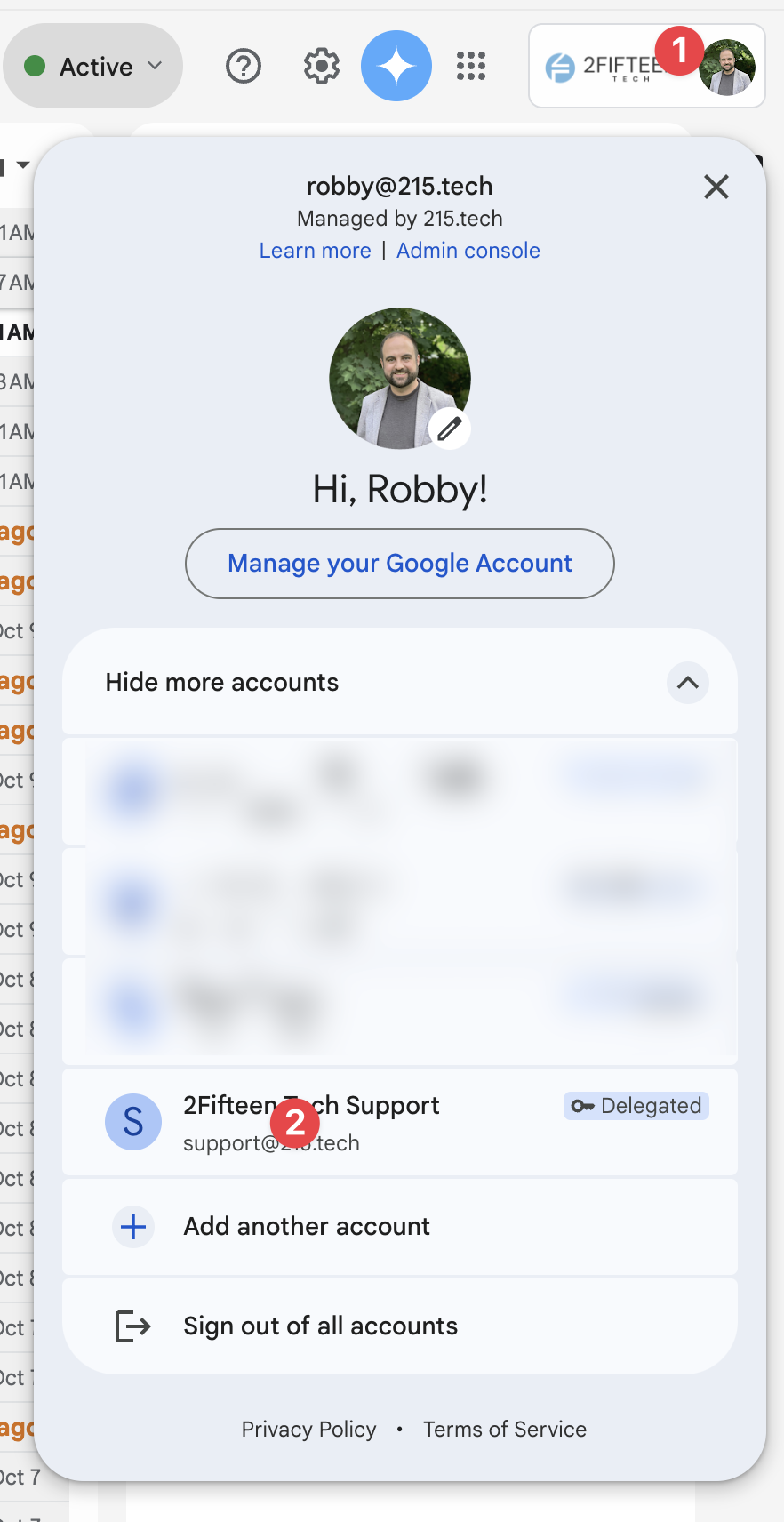
- Click your profile picture in the top right corner
- Look for accounts marked as "Delegated" in the dropdown
- Click the delegated account to open it in a new tab
Note – If you were recently added as a delegate, it can take up to 24 hours for the account to appear. Try refreshing the page periodically.
Using the Delegated Account
Once you click the delegated account:
- A new browser tab opens with the owner's inbox
- Check the email address at the top to confirm you're in the correct account
- All actions you take affect the owner's account
Sending Emails
When you send an email from a delegated account:
- The email is sent from the owner's email address
- Recipients may see "sent by [your email] on behalf of [owner's email]"
- Replies will go to the owner's inbox
Switching Back to Your Account
To return to your own inbox:
- Close the delegated account tab, or
- Click your profile picture and select your own email address
Best Practices
- Don't bookmark the delegated inbox – The access link can change; always use the account switcher
- Verify which account you're in – Check the email address before sending messages
- Communicate with other delegates – If multiple people have access, coordinate to avoid duplicate work
- Log out when finished – Close the delegated tab when you're done
Troubleshooting
| Issue | Cause | Resolution |
|---|---|---|
| Account not appearing | Takes up to 24 hours to activate | Wait and refresh; confirm invitation was accepted |
| Invitation expired | Not accepted within 7 days | Ask account owner to resend the invitation |
| "Access denied" error | Owner's password was recently changed | Owner must sign in first, then delegation resumes |
| Bookmark no longer works | Delegation URLs change | Delete bookmark; use account switcher instead |
| Can't find invitation email | May be in spam folder | Check spam/junk folder for email from Google |
| Smart Compose not working | Feature disabled for delegates | This is expected; compose emails manually |
Quick Reference
| Item | Details |
|---|---|
| Access Gmail | mail.google.com |
| Find delegated accounts | Profile picture → Look for "Delegated" label |
| Activation time | Up to 24 hours after accepting invitation |
| Invitation expiration | 7 days |
| Max delegates per account | 10 (personal) or 1,000 (Google Workspace) |