
Moving Your Chrome Bookmarks and Passwords to a New Google Account
When your email moves to a new Google Workspace account, your mail, calendar, and Drive files come with you. Your Chrome profile does not.
Bookmarks, saved passwords, extensions, and browsing history all live inside the Chrome profile attached to your old account. None of it transfers on its own. This guide walks you through saving those items out of the old profile and loading them into the new one.
Time required: about 15 minutes, on each computer where you use Chrome.
Important – Complete Steps 1 through 3 before your old account is turned off. Once the old account is disabled, you may not be able to sign back in to retrieve this information.
What Moves and What Doesn't
Item | Moves to the new account? |
|---|---|
Email, Calendar, Contacts, Drive files | Yes — handled for you as part of the migration |
Chrome bookmarks | No — Step 1 and Step 5 |
Saved passwords | No — Step 2 and Step 5 |
Chrome extensions | No — must be reinstalled (Step 3) |
Saved addresses and payment methods | No — must be re-entered (Step 3) |
Browsing history | No — cannot be transferred |
Open tabs and pinned tabs | No — cannot be transferred |
Chrome themes, homepage, and other settings | No — must be set again |
Before You Start
Make sure all of the following are true:
Chrome is open and you are still signed in with your old account.
You know your new email address.
You are working on the computer whose bookmarks you want to keep.
Note – If you use Chrome on more than one computer, repeat this guide on each one. Phones and tablets are not affected; they only need you to sign in with the new account.
Step 1: Save Your Bookmarks
Open Chrome. Check the circle icon in the top-right corner to confirm you are in your old profile.
Open the Bookmark Manager:
Windows: press
Ctrl+Shift+OMac: press
Command+Option+B
You can also click the three dots
⋮in the top-right corner of Chrome, then Bookmarks and lists → Bookmark manager.
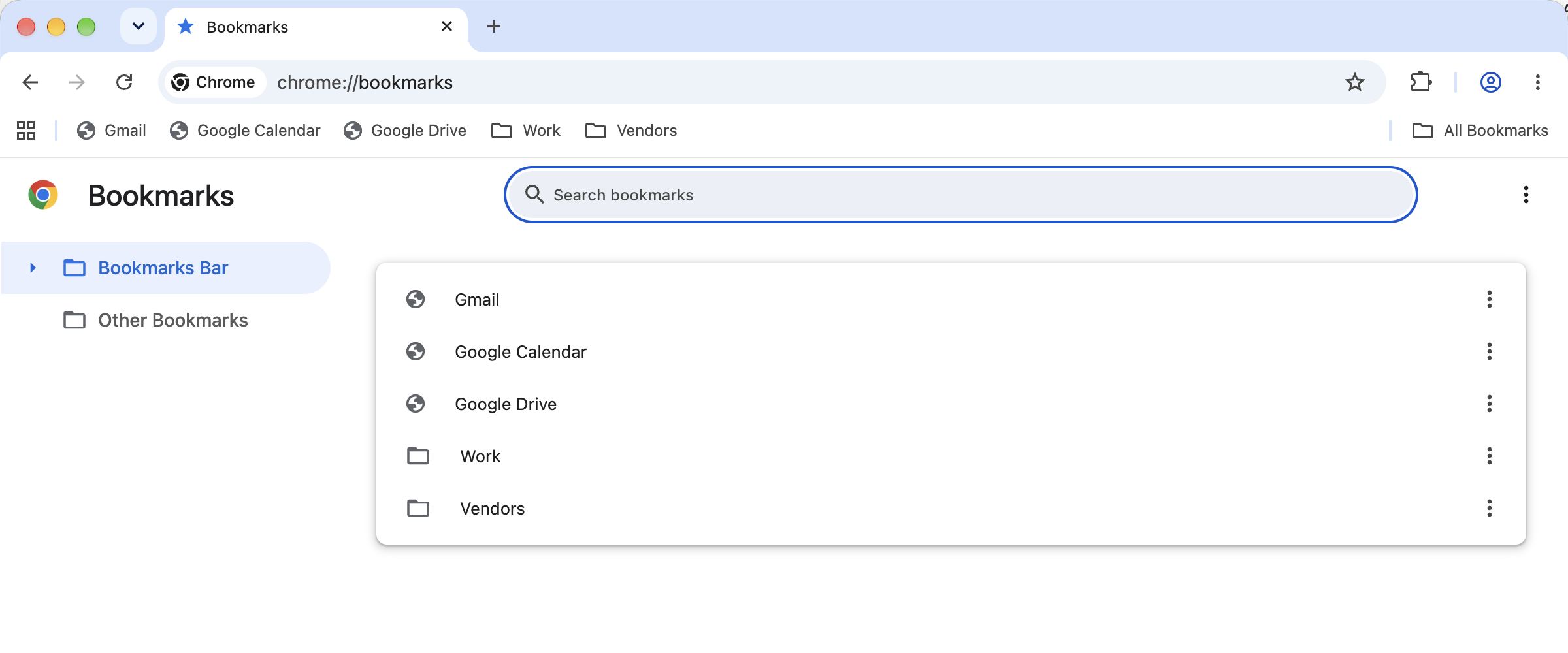
Click the three dots
⋮on the Bookmarks page itself — the one to the right of the search box, not the one in the Chrome toolbar above it.Click Export bookmarks.
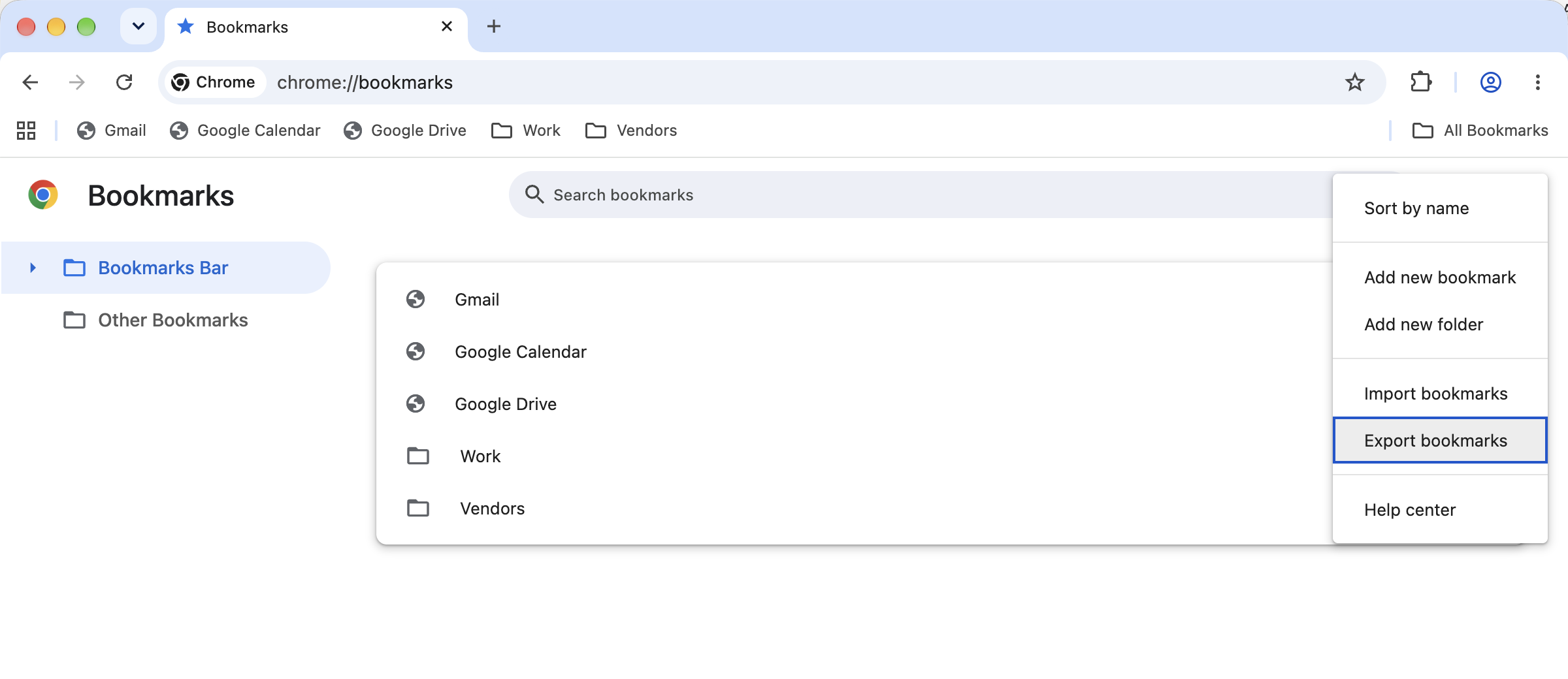
Chrome suggests a file name such as
bookmarks_9_2_26.html. Change Where to your Desktop so the file is easy to find, then click Save.
Note – This file contains only your bookmarks. Keep it until Step 5 is finished, then you can delete it.
Step 2: Save Your Passwords
Important – The exported password file is an ordinary spreadsheet with every password readable in plain text. Save it to your Desktop, use it right away, and delete it as soon as you are done — see Step 6.
Click the address bar at the top of Chrome, type
chrome://password-manager/settingsand press Enter.You can also click the three dots
⋮→ Passwords and autofill → Google Password Manager → Settings.Find Export passwords and click Download file.
Confirm your identity when prompted — Touch ID or your Mac password, or Windows Hello or your Windows PIN.
Save the file to your Desktop. It will be named something like
Chrome Passwords.csv.
Note – If you do not see Export passwords, your organization has turned that option off. Contact 2Fifteen and let us know that password export is blocked — we can help you move them another way.
Step 3: Write Down Everything Else
These items cannot be exported to a file. Take a screenshot or write them down now.
Extensions
Type
chrome://extensionsin the address bar and press Enter.Write down the name of every extension you actually use.
Note – Extensions have to be reinstalled in the new profile, and any settings or logins inside them start over.
Saved Addresses and Payment Methods
Type
chrome://settings/addressesand press Enter. Note anything you want to keep.Type
chrome://settings/paymentsand press Enter. Note anything you want to keep.
Note – For security, Chrome never exports full card numbers. You will need the physical card to re-enter it.
Step 4: Create a Chrome Profile for the New Account
Add a second profile rather than signing the old one out. Your old profile stays on the computer untouched, so nothing is lost if something goes wrong.
Type
chrome://profile-pickerin the address bar and press Enter.You can also click the circle profile icon in the top-right corner of Chrome and choose Add Chrome profile.
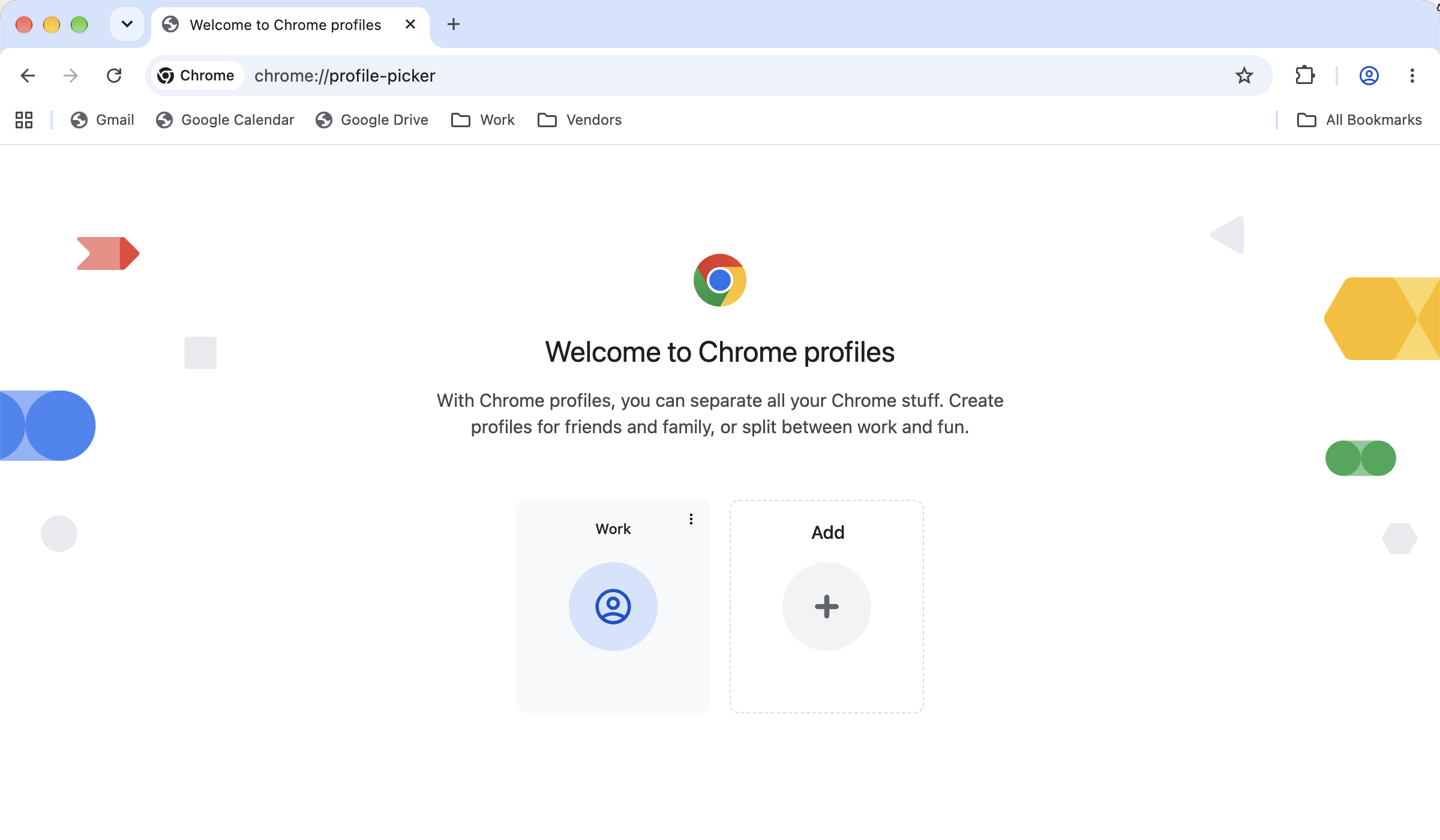
Click Add, then Sign in.
Sign in with your new email address and password.
When Chrome asks whether to turn on sync, choose Yes, I'm in. This saves your new bookmarks and passwords to the new account going forward.
Note – A new Chrome window opens for the new profile. Everything in the rest of this guide happens in that window. Your old profile is still available from the same profile icon.
Step 5: Load Everything Into the New Profile
Note – Make sure you are in the new profile window before continuing. Check the circle icon in the top-right corner — it should show your new account.
Bookmarks
Type
chrome://settings/importDatain the address bar and press Enter.You can also click the three dots
⋮→ Bookmarks and lists → Import bookmarks and settings.In the drop-down list, choose Bookmarks HTML File.
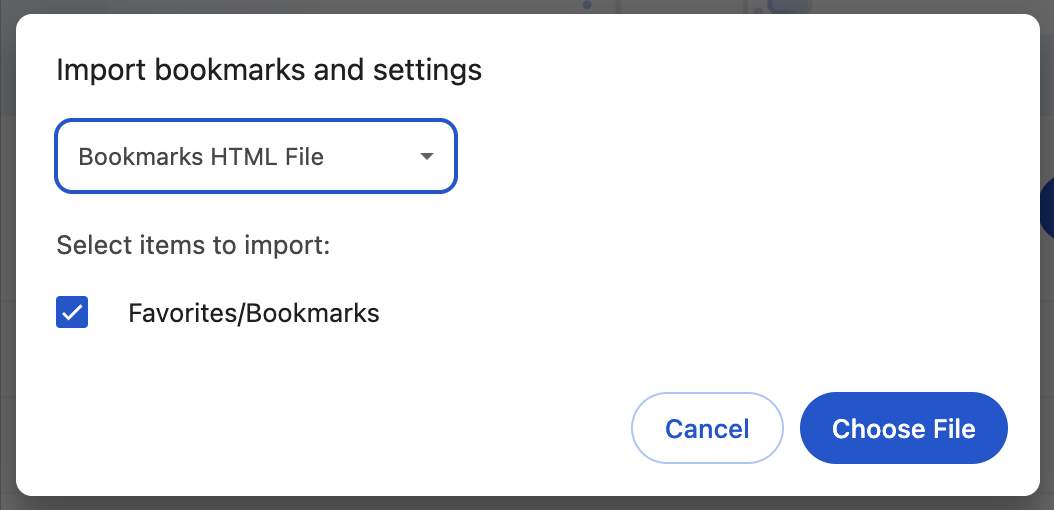
Click Choose File, select the bookmarks file you saved in Step 1, and click Open.
Click Done.
You can also do this from the Bookmark Manager — press Ctrl + Shift + O (Windows) or Command + Option + B (Mac), click the three dots ⋮, and choose Import bookmarks.
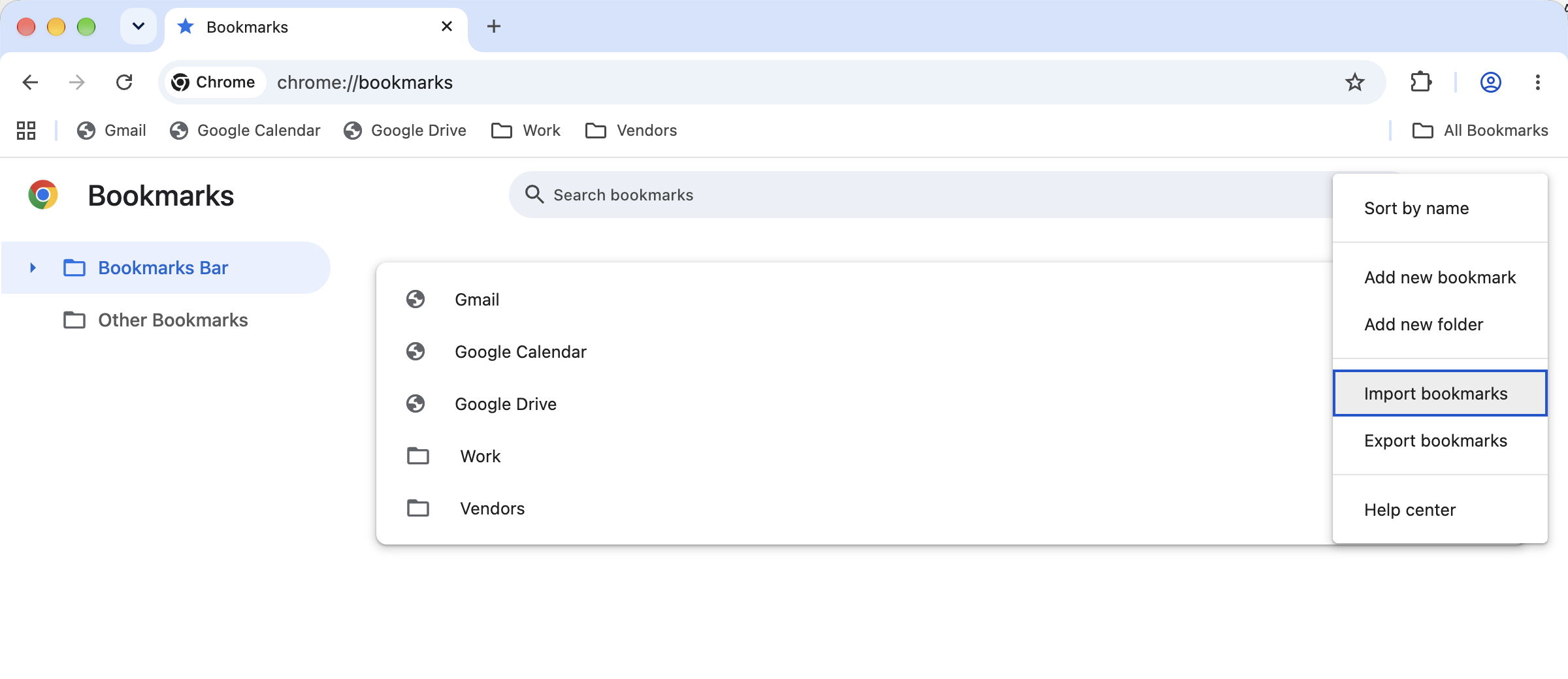
Note – If the new profile already had bookmarks, the imported ones land in a folder named Imported. Drag them out of that folder to arrange them however you like.
Passwords
Type
chrome://password-manager/settingsin the address bar and press Enter.Find Import passwords and click Select file.
Choose the password file you saved in Step 2 and follow the prompts.
Note – Chrome reports how many passwords were added and how many were skipped. Skipped entries are almost always duplicates that were already saved.
Extensions
Go to the Chrome Web Store.
Search for each extension from your Step 3 list and click Add to Chrome.
Sign in to each extension again if it asks.
Addresses and Payment Methods
Type
chrome://settings/addressesand press Enter, then re-enter your addresses.Type
chrome://settings/paymentsand press Enter, then re-enter your cards.
Step 6: Delete the Password File
Important – Do not skip this step. The exported password file is unencrypted. Anyone with access to your computer, backups, or cloud sync can read every password in it.
Go to your Desktop and find the password file from Step 2.
Delete it.
Empty the Trash (Mac) or Recycle Bin (Windows).
Once you have confirmed your bookmarks came across, delete the bookmarks file from Step 1 as well.
Check Your Work
In the new profile, confirm each of the following:
Check | How |
|---|---|
Bookmarks are there | Press |
Passwords are there | Go to |
Extensions are installed | Go to |
Sync is on | Go to |
Password file is gone | Check the Desktop, then the emptied Trash or Recycle Bin |
Troubleshooting
I don't see "Export bookmarks" in the menu
You are most likely clicking the three dots in the Chrome toolbar instead of the ones on the Bookmarks page. Open the Bookmark Manager first with Ctrl + Shift + O (Windows) or Command + Option + B (Mac). The correct three-dot button sits to the right of the "Search bookmarks" box.
"Export passwords" is missing or greyed out
Your organization has disabled password export by policy. Contact 2Fifteen and tell us password export is blocked on your account — we can move them for you or temporarily allow the export.
My bookmarks all landed in a folder called "Imported"
That is normal. Chrome puts imported bookmarks in a folder when the profile already has bookmarks of its own. Open the Bookmark Manager, then drag the items out of the Imported folder into the Bookmarks Bar or wherever you want them.
Passwords didn't import, or many were skipped
Check that you selected the .csv file and not the bookmarks .html file. Skipped entries usually mean the password was already saved in the new account. If Chrome rejects the file entirely, open it in a spreadsheet program and confirm the first row contains the column headings url, username, and password.
My bookmarks are on my phone but not on this computer
Your bookmarks are stored in the old account, not on the phone. Sign in to Chrome on any computer with the old account, let it finish syncing, and then run Step 1 there.
I no longer have access to my old account
If the old profile is still on the computer, your bookmarks and passwords may still be stored locally even though sign-in fails. Do not remove the profile and do not sign out. Contact 2Fifteen right away — removing a Chrome profile permanently erases its bookmarks, history, and passwords from the computer.
Chrome signed me out or says my profile is managed by my organization
This is expected on a work account. It does not block anything in this guide. If Chrome signs you out of the old profile before you finish Step 1, contact 2Fifteen before doing anything else.
Quick Reference
Type these into the Chrome address bar and press Enter.
Address | What it opens |
|---|---|
| Bookmark Manager — export and import bookmarks |
| Import bookmarks and settings |
| Export and import passwords |
| List of saved passwords |
| Installed extensions |
| Saved addresses |
| Saved payment methods ("Payments") |
| Switch or add a Chrome profile |
| Sync and account settings |
Shortcut | Windows | Mac |
|---|---|---|
Open Bookmark Manager |
|
|
Show or hide the bookmarks bar |
|
|