
Google Chat – Turn Off Email Notifications for Missed Messages
By default, Google Chat sends email reminders to your Gmail inbox for any direct messages or @mentions you haven't read within 12 hours. This guide shows how to turn off those email notifications.
Note – This only affects email notifications for missed chats. Desktop/mobile push notifications are controlled separately.
Option 1: From Google Chat (Recommended)
- Open Google Chat in your browser.
- Click the gear icon (Settings) in the top-left corner to open Chat settings.
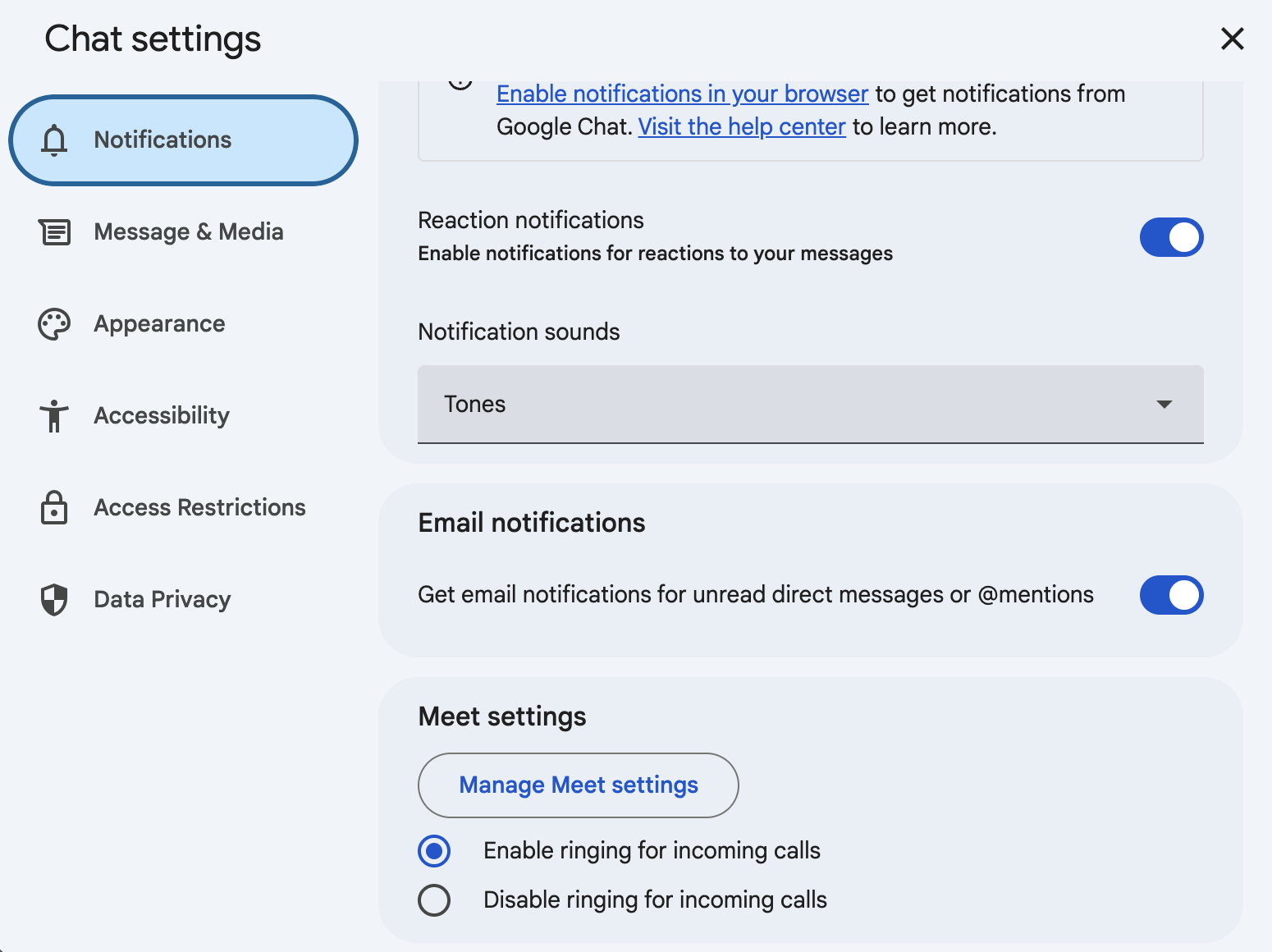
- Click Notifications in the left sidebar.
- Scroll down to the Email notifications section.
- Toggle off Get email notifications for unread direct messages or @mentions.
Option 2: From Gmail Settings
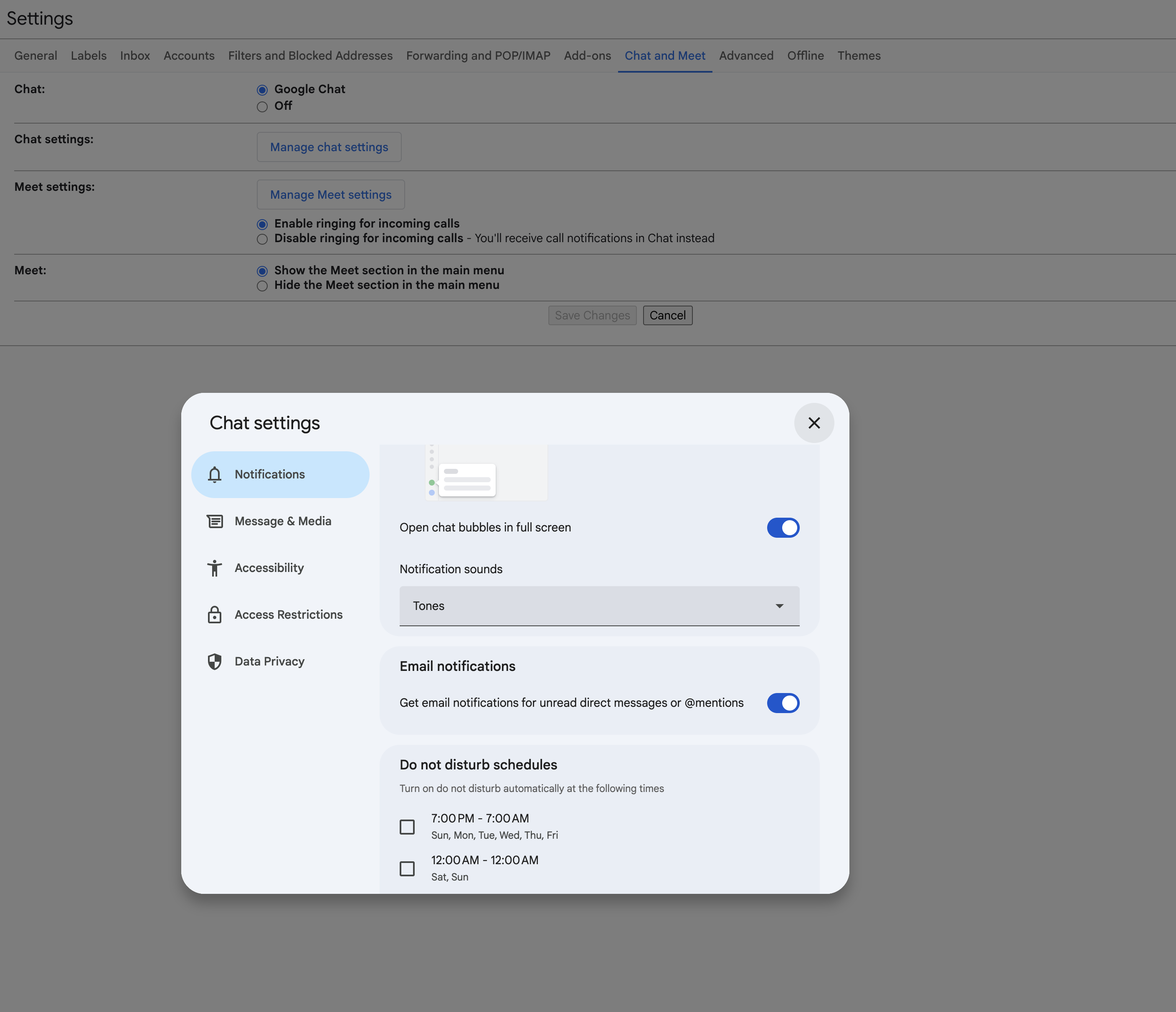
- Open Gmail Chat & Meet Settings (or in Gmail, click the gear icon > See all settings > Chat and Meet tab).
- Next to "Chat settings," click Manage chat settings.
- Scroll down to the Email notifications section.
- Toggle off Get email notifications for unread direct messages or @mentions.
Mobile (Gmail App)
Email notifications for missed chats are controlled by the web settings above. Changing the setting on the web applies to your account everywhere — there is no separate mobile toggle for this.
To manage push notifications on your phone (separate from email notifications):
Android
- Open the Gmail app.
- Tap the hamburger menu (three lines) in the top left.
- Tap Settings > select your account.
- Under Chat notifications, toggle notifications on or off.
iPhone / iPad
- Open the Gmail app.
- Tap the hamburger menu (three lines) in the top left.
- Tap Settings > select your account.
- Under Chat notifications, toggle notifications on or off.
Troubleshooting
| Issue | Solution |
|---|---|
| Still getting email notifications after turning them off | Changes can take a few minutes to apply. Also confirm you changed the setting for the correct Google account if you have multiple accounts. |
| Can't find the Email notifications setting | Make sure you're in the Notifications section inside Chat settings — not in Gmail's general notification settings. |
| Want to stop emails for a specific conversation only | You can mute individual conversations: hover over the conversation in the left sidebar, click the three-dot menu, and select Notifications > None. |
Quick Reference
| Task | Path |
|---|---|
| Turn off email notifications for missed chats | Chat settings > Notifications > Email notifications > toggle Off |
| Mute a single conversation | Hover conversation > three-dot menu > Notifications > None |
| Temporarily silence everything | Set status to Do not disturb |